How do I message others?
Communication
School Owner
Teacher
Parent
Need to reach out to a teacher, parent, or school admin? Learn how to send and receive messages directly in the app – all in one secure place.
In this article
Click on a link below to jump to each section
In this article
Click on a link below to jump to each section
Viewing and Receiving Messages
If you’re a school owner, a parent, or a teacher, you will find messages and announcements directly on your dashboard. When on dashboard, scroll down to find the messages card. It will keep you informed about any unread messages and announcements you received. Click/Tap View All on the top right of this card or use the left-side menu and find Messages.
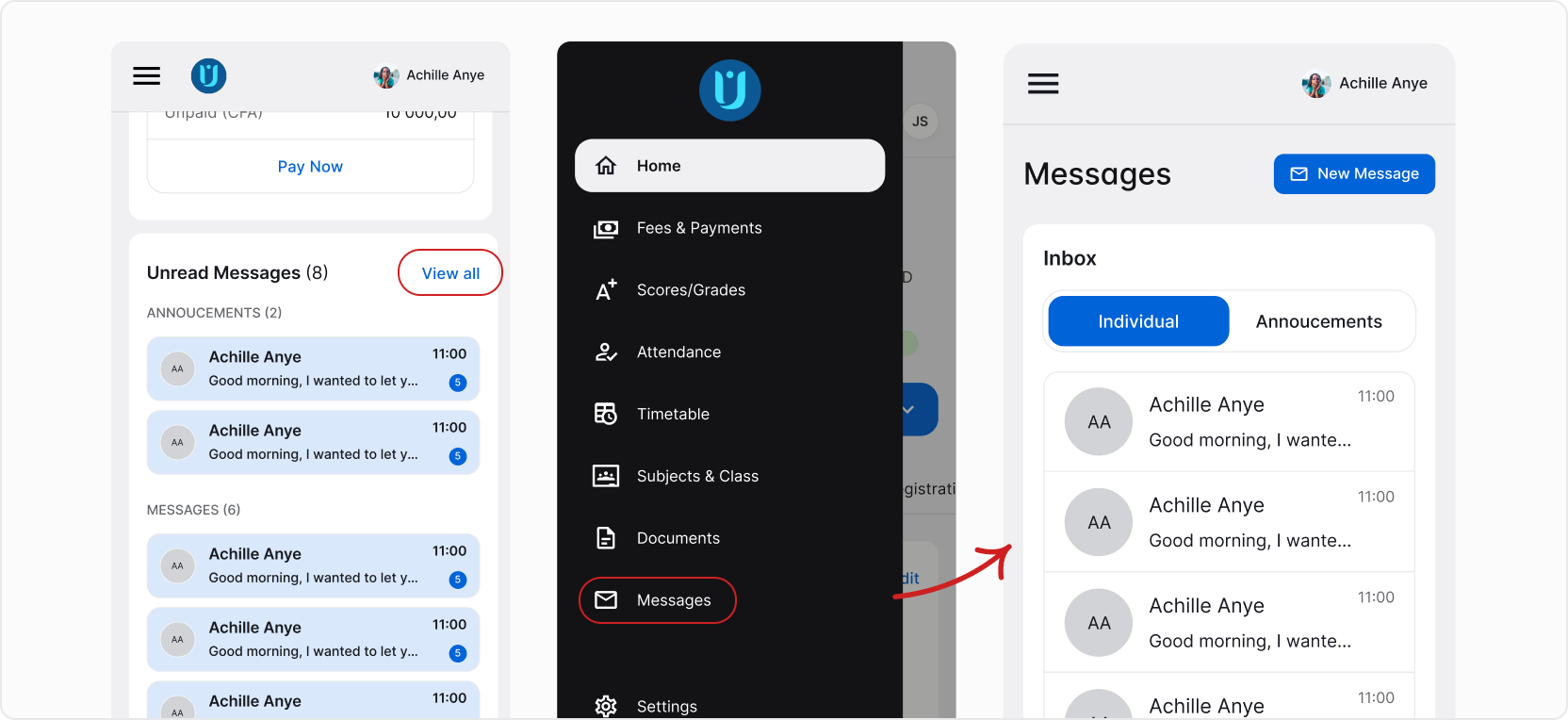
Here, you will see all of your conversations. If you haven’t received or sent any message yet, the inbox will be empty.
❓ What you see may slightly differ from the images above. The view and options you have depend on your role in AcademIQ (whether you’re a parent, school owner, teacher, or admin). For example: Parents can’t send announcements.
Sending a Message
To send a new message or announcement, click/tap the New button. If you’re a parent, the button will be named New Message.
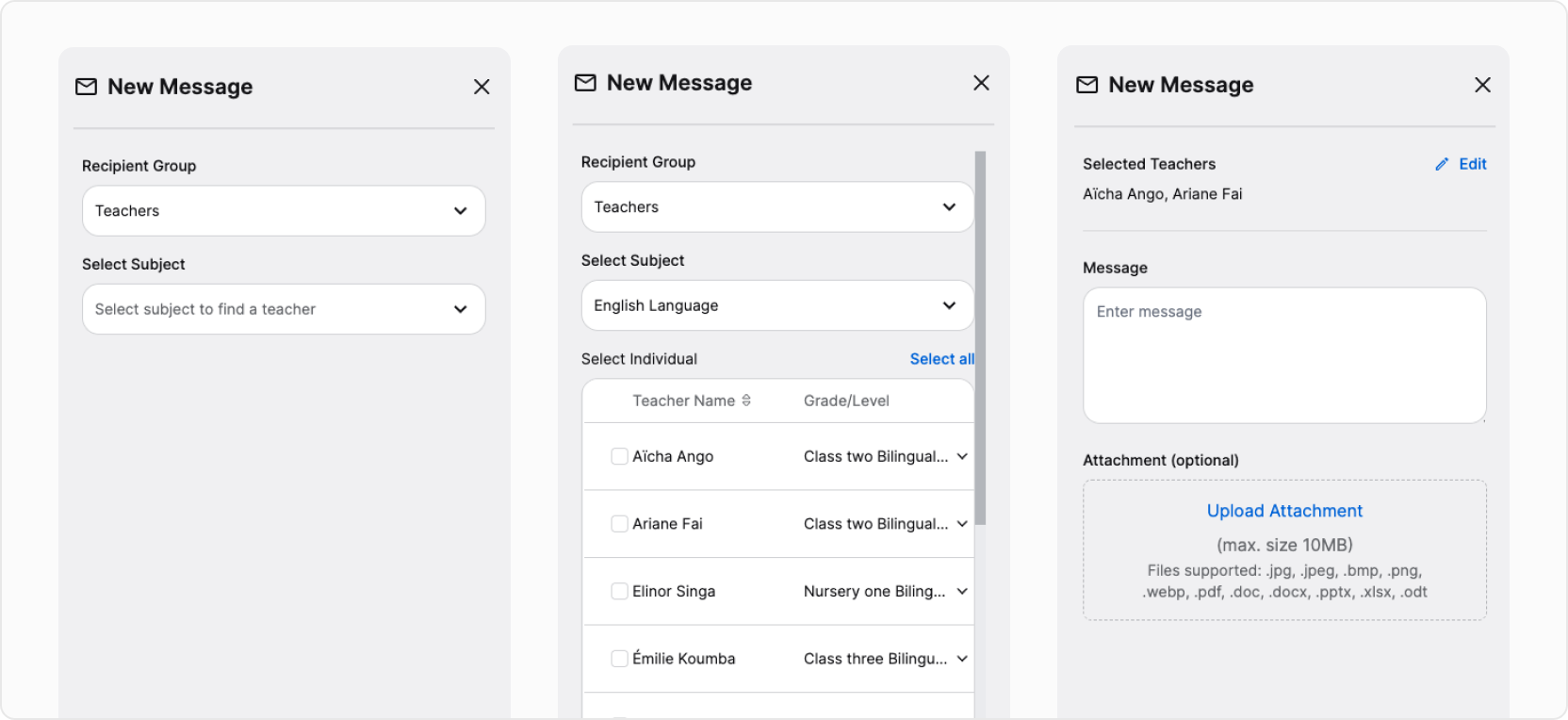
Then, select one or more recipients. You can also use the search on top, simply type the recipient’s name or surname. When selected, a chat will open. Type the message and send.
💡 Chat in AcademIQ works like any communicator apps, for example: WhatsApp.
💡 AcademIQ will notify you if you receive a new message or a new announcement. If you’re using the Parent App, expect a push notification. Otherwise, you will receive it by email.