How do I send announcements?
Communication
School Owner
Teacher
Easily keep students, parents, and staff informed. This guide shows you how to send announcements to selected groups or your entire school community – quickly and effectively.
In this article
Click on a link below to jump to each section
In this article
Click on a link below to jump to each section
Viewing and Receiving Announcements
Announcements can be sent by teachers, administrators and school owners/principal teachers. If you’re a school owner, a parent, or a teacher, you will find messages and announcements directly on your dashboard. When on dashboard, scroll down to find the messages card. It will keep you informed about any unread messages and announcements you received. Click/Tap View All on the top right of this card or use the left-side menu and find Messages.
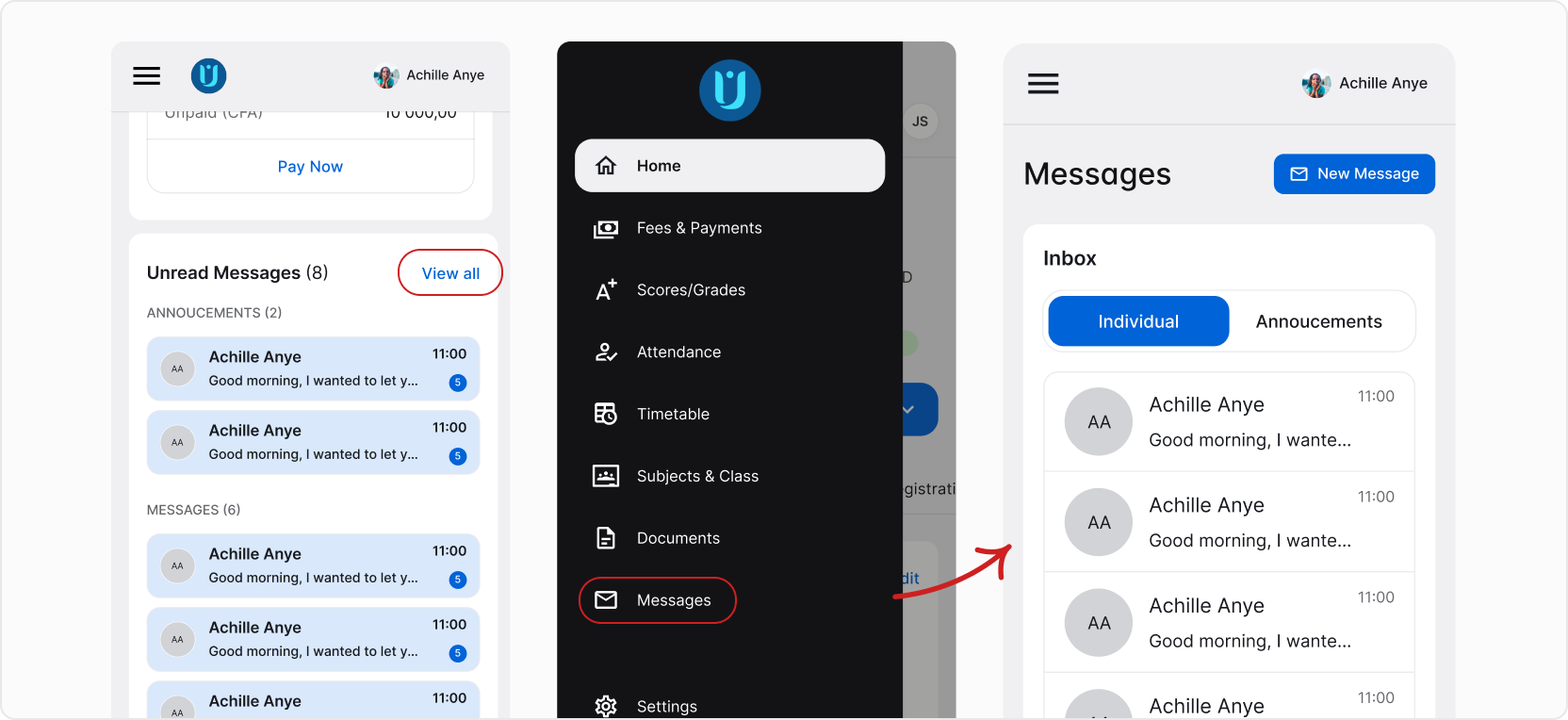
Here, you will see all of your conversations. To switch to announcements, simply tap/click the Announcements tab.
❓ Want to learn more about sending and receiving messages in AcademIQ? View the How do I message others? guide.
Sending an Announcement
To send an announcement, similarly to how you’d do when sending a regular message, click/tap New on the Messages view. From the options, select Announcement.
If you’re logged to AcademIQ on your computer, you will have a separate button New Announcement.
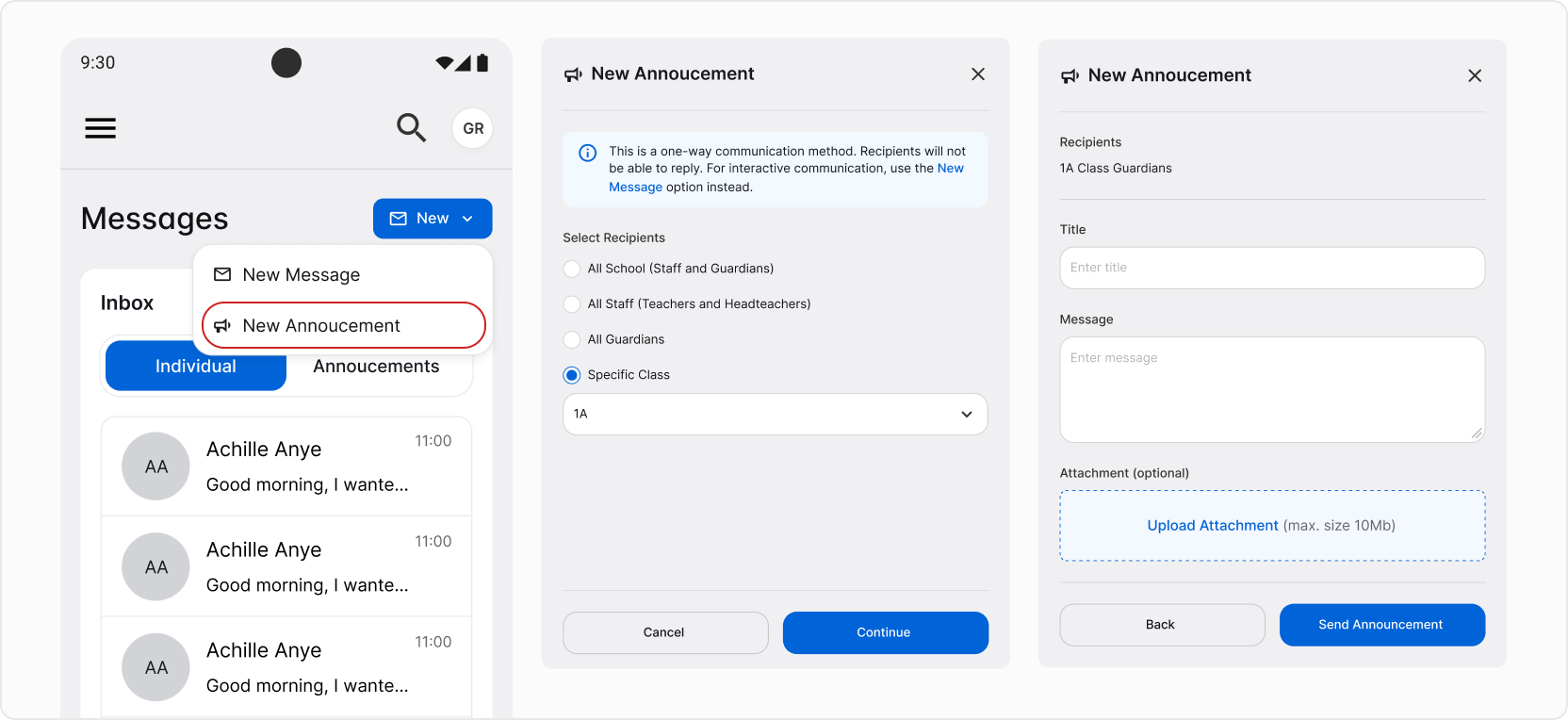
In the form, select who you want to send the announcement to. Depending on your role, you may have less options than on the image above. For example, a teacher can’t send an announcement to the entire school.
Afterwards, click/tap Continue. Now, add a title and enter the message. You can optionally upload an attachment. When you’re ready, click/tap Send Announcement. All done! The announcement has been sent and will appear immediately in the recipients’ inboxes.
❓ Don’t have the recipients you want to send the announcement to? Contact your school to make sure you have the right permissions in the system.