How do I create a timetable?
Courses & Scheduling
School Owner
Designing your school’s timetable can be simple. Learn how to build, edit, and manage timetables that work for your students, teachers, and school structure.
In this article
Click on a link below to jump to each section
In this article
Click on a link below to jump to each section
Viewing the Timetable
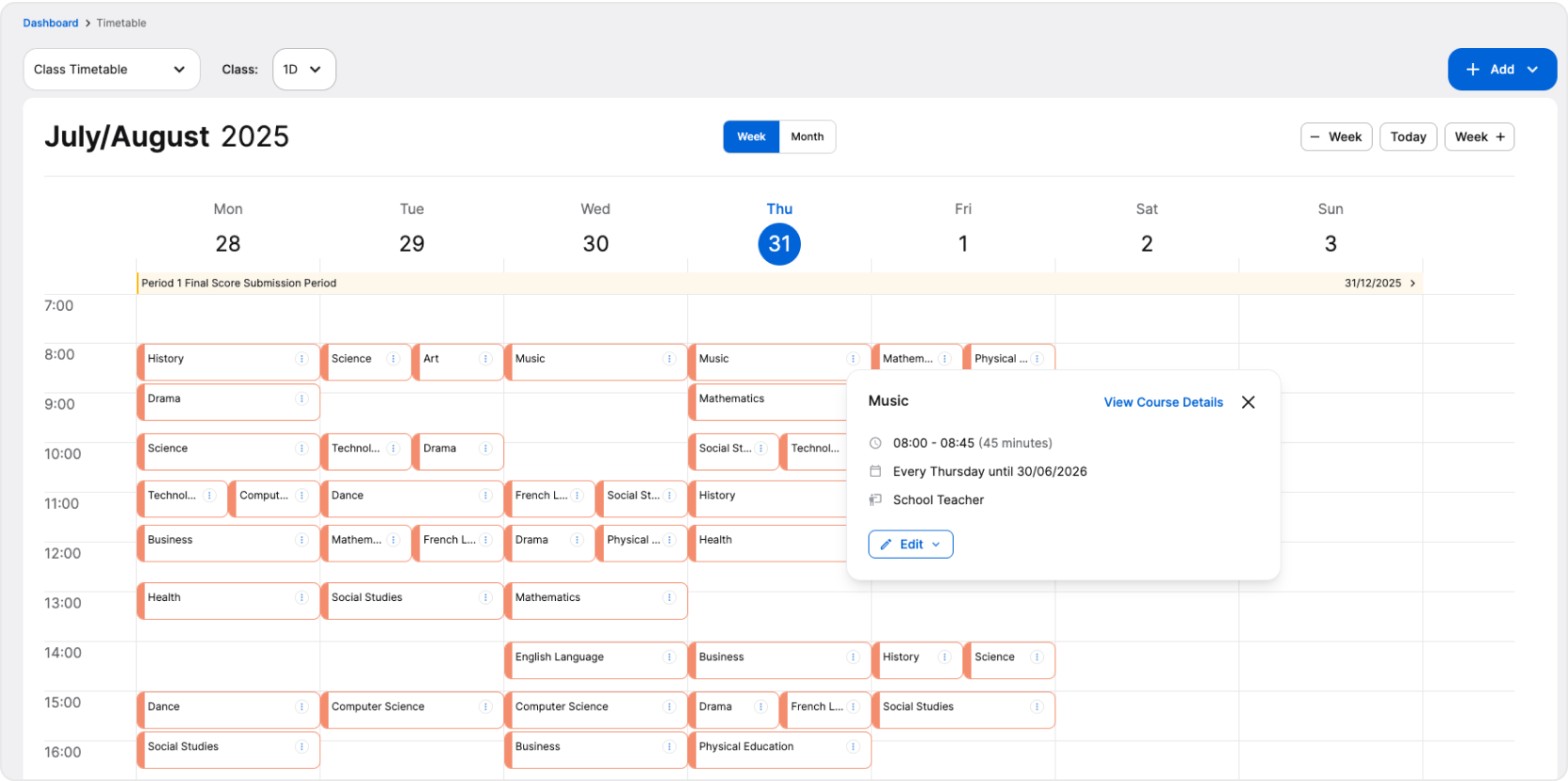
The timetable has its own section in AcademIQ. To access the timetable, simply click Timetable on the left-side menu. By default, you’ll see a timetable for the entire school. In this setting, you’ll see events, days off, and final score submission periods – everything that impacts all grades/levels and classes of the whole school.
Use the button on the left side to switch between timetables. You’ll be able to view a selected class’ or teacher’s timetable this way. Simply switch the timetable to, for example, a class timetable and then select the desired class from the options.
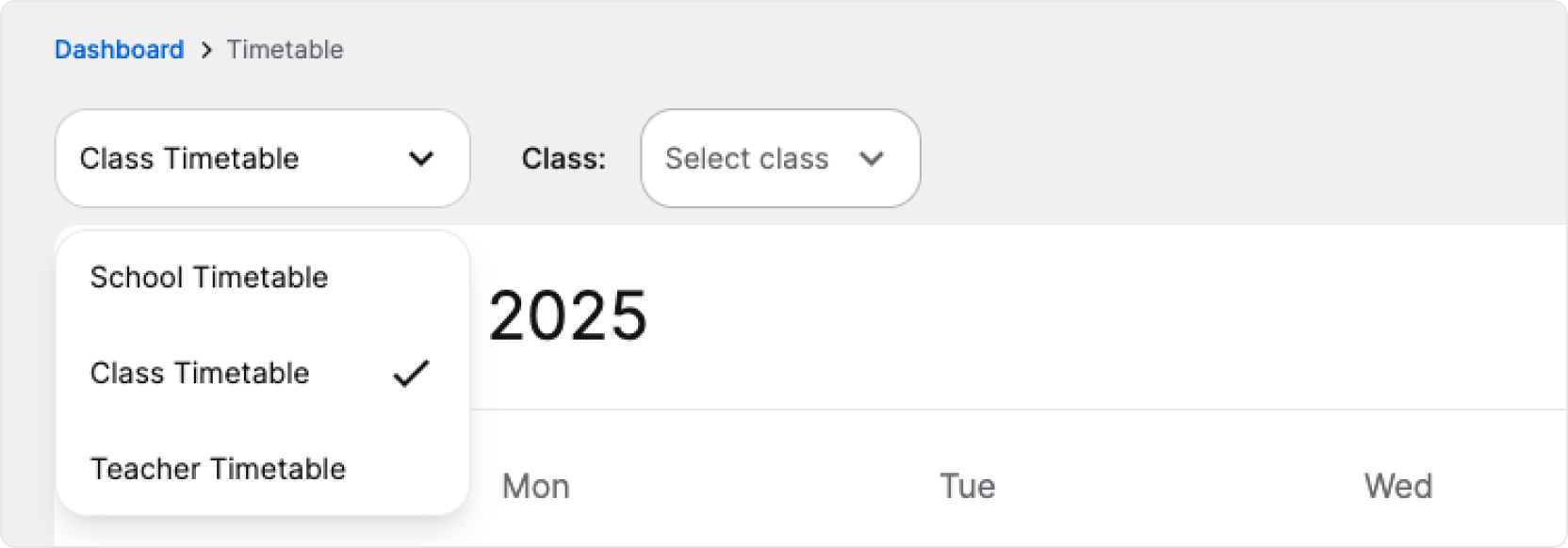
If you haven’t added any lessons/classes to the timetable yet and it’s empty, you can start creating the schedule. Find information on how to do this down below.
❓ You won’t be able to schedule lessons if you haven’t added any courses/classes and assigned them to teachers and students. Make sure you’ve added them by checking the Courses section. If you need more guidance on this topic, check out the How do I assign students and teachers?.
Scheduling a Lesson, Event or Day off
You can add to the schedule by clicking the Add button on the right side above the timetable.
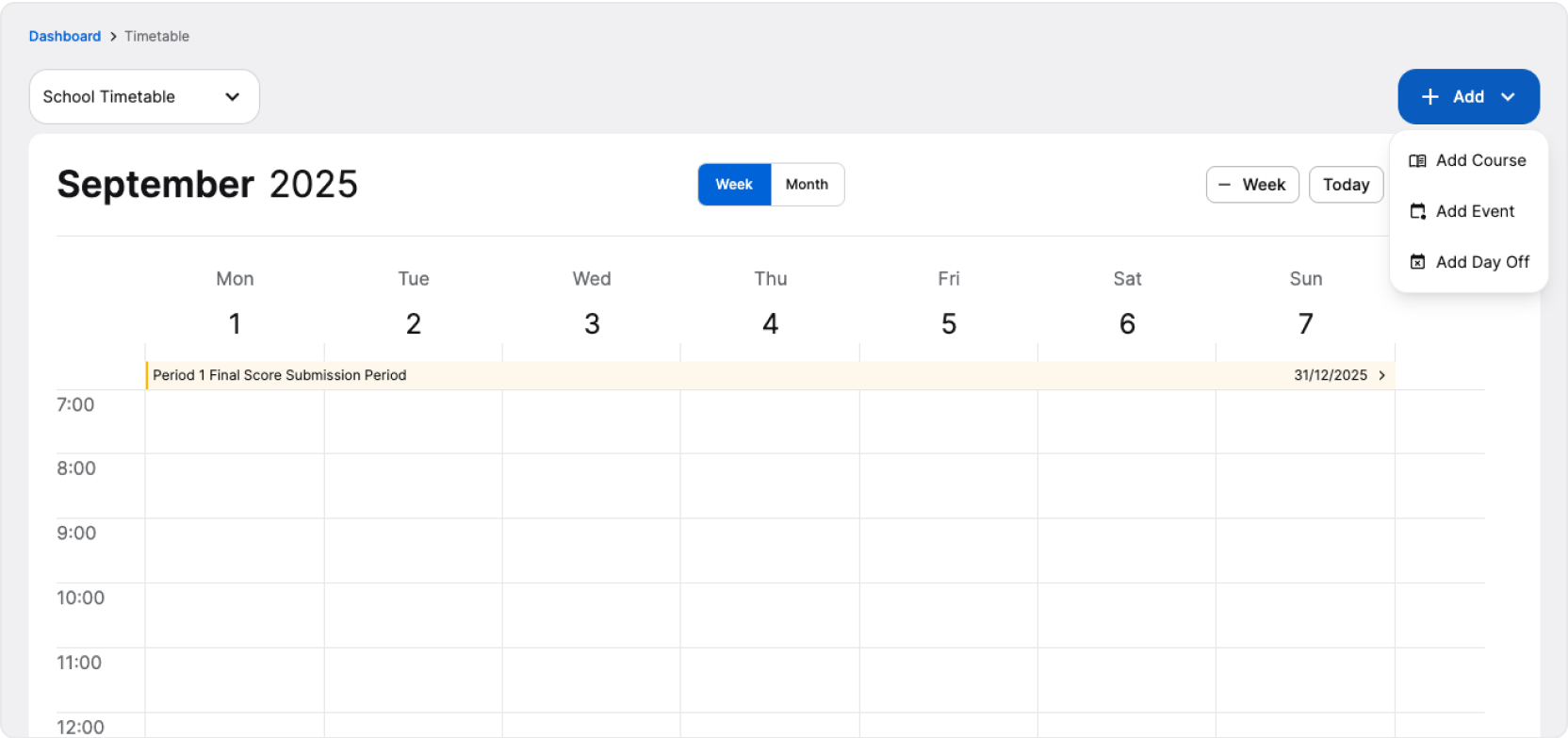
Then, select what you’d like to add to the timetable. You can add a course, an event, or a day off.
Course – Schedule lessons for a course/class. They can be set to one-time occurences or recurring, which means they will repeat daily or weekly.
Event – Schedule an event for a grade/level, class, or entire school. During an event, regular lessons will not take place.
Day Off – Schedule a day off when the school is closed. During a day off, lessons and events will not take place.
Events and days off will show in the timetables of students, teachers, and guardians from the selected grades.
When added, you can choose between viewing the timetable in a week view or month view.
Everything can be modified anytime. To load more information about a scheduled event/class/day off, simply click on the three dots menu in the top right corner of the scheduled event’s card. A pop-up will open. Use the Edit button to modify information or remove/cancel the lesson/event/day off.