How do I create and manage fees?
Fees & Payments
School Owner
You can use AcademIQ to create and manage school fees. Configuring them allows parents/guardians to make payments, and the school staff to track each fee and payment easily.
In this article
Click on a link below to jump to each section
Fee Types
Navigate to School Settings > School Setup > Fee Types
Add types of fees in your school. Types added here will be later used to assign fees to students, classes, and grades/levels.
There are two categories of fee types:
Required – these fee types are required to be paid by all students and will be automatically assigned to all of them, for example: registration fee, monthly tuition.
Other – fees that are not required to be paid by everyone or happen irregularly, for example: field trip, books.
In this article
Click on a link below to jump to each section
💡 A fee type can’t be removed from the setup after fees are assigned to it.
Assign a Fee
In this tutorial, you’ll assign fees that are categorised as “Other” in the Fee Types configuration (previous step). It means fees that happen irregularly, such as field trips or school uniforms.
💡 If you’re looking to assign tuition fees, you can skip this part and view the Custom Collective Fees part of the guide.
1. After the setup of fee types is complete, navigate to Fees in the left-side menu.
2. From the fees list, click Assign Fee.
3. First, select who to assign the fee to: students, classes, or entire grades/levels. Then, click Next.
4. Then, depending on which option you chose, find the students, classes, or grades/levels you want to assign the fee to and add them from the list. Proceed to the next step when you’re ready.
5. Add fee details. Choose what type of fee it is (if you haven’t created them, view previous step), select due date, and add a name for the fee.
6. Add one or more fee item. Amount to be paid for each fee item will be automatically added to the total amount that’ll need to be paid. When you’re ready, click Next.
7. Review the information and click Assign Fee to confirm.
Custom Collective Fees
Custom collective fees are the essential school fees, such as tuition fee, registration fee.
Go to School Settings > School Fees > Custom Collective Fees
1. Select who to assign the fee to: students, classes, or grades/levels. Then, click Next.
2. Then, depending on which option you chose, find the students, classes, or grades/levels you want to assign the fee to and add them from the list. Proceed to the next step when you’re ready.
3. Add fee details. Choose what type of fee it is (if you haven’t created them, view previous step), select due date, and add a name for the fee.
4. Add one or more fee item. Amount to be paid for each fee item will be automatically added to the total amount that’ll need to be paid. When you’re ready, click Next.
5. Review the information and click Assign Fee to confirm.
Tracking Fees
A complete list of fees can be viewed when simply going to the Fees section, on the left-side menu. A user with a finance admin system role will additionally have fee-related actions and information cards on their dedicated finance dashboard. If you have the finance admin role assigned, but don’t see the finance dashboard, you can switch between dashboards using a button in the top right section of the page.
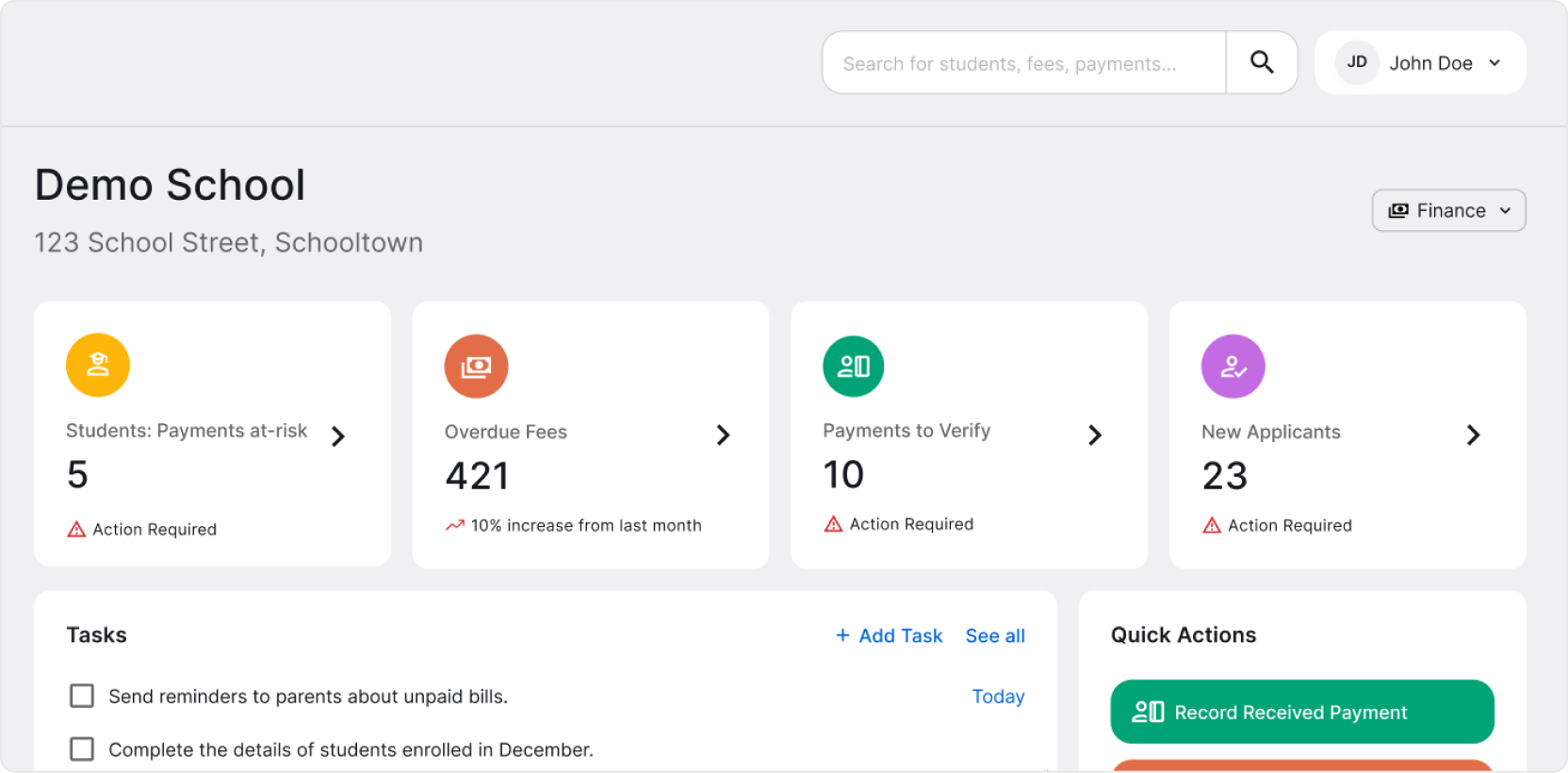
💡 Need to learn more about system roles? See the How do I assign user roles? guide.
When you select a fee, you’ll go to Fee Details. On this page, you’ll find all information about the fee, including payments and payment status.
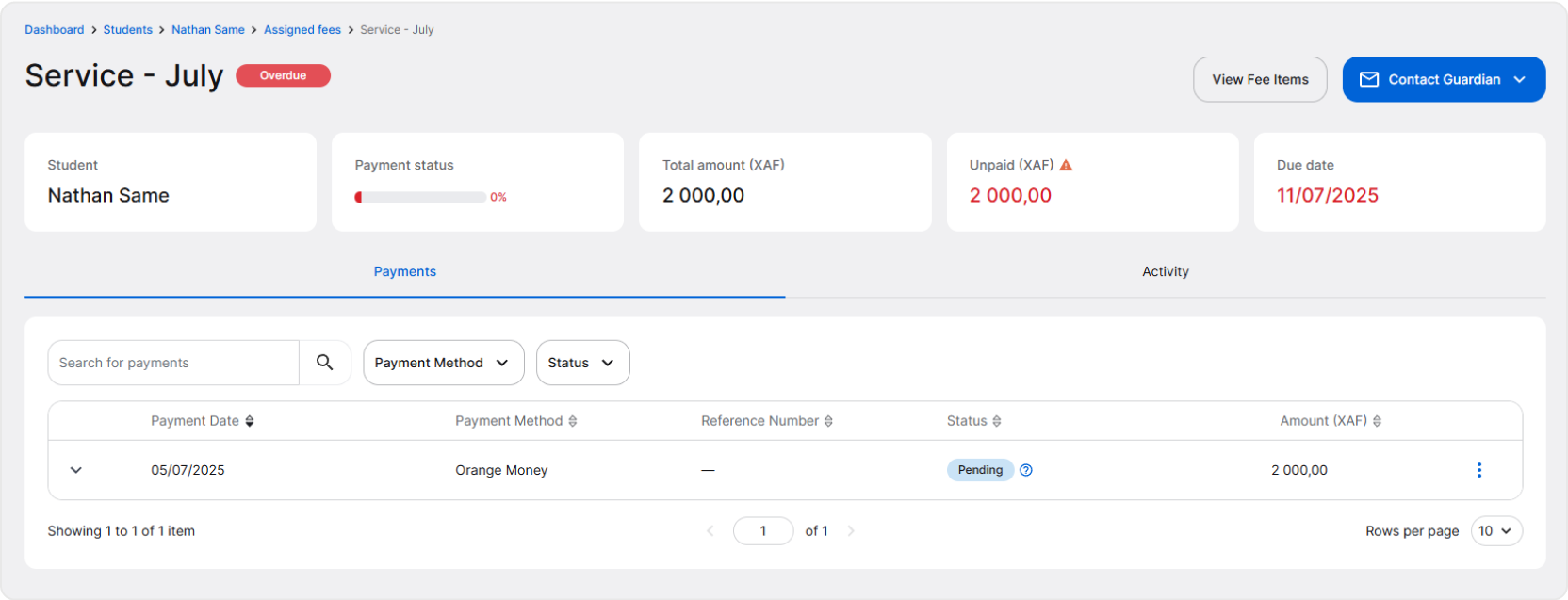
To learn more about payments, view the How do I receive and verify payments? guide.