How do I activate or register a student?
Student Registration
School Owner
You’ve already added a student, uploaded, reviewed and approved registration documents. Now, when the student has met all registration requirements, they can be activated in the system.
In this article
Click on a link below to jump to each section
In this article
Click on a link below to jump to each section
Checking Registration Document Status
Students that need to be activated are shown in the New Applicants information card on the finance dashboard. There, you’ll find all students that were added to the system, but are not active yet. Most likely because of missing registration requirements.
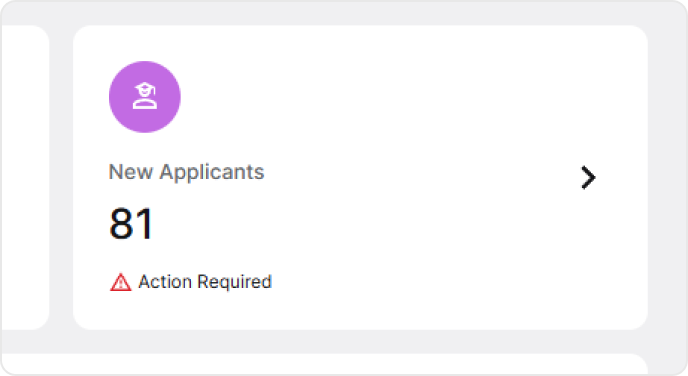
Select a student that was not activated yet to view their profile. To do so, simply click on their name. To continue the student registration process, the student has to have all required documents uploaded and marked as delivered. You can review the student’s documents in the Registration Documents tab.
❓ Not sure how to approve or upload registration documents? View How do I upload, verify, and approve registration documents? guide.
If a student has any registration documents missing, you’ll see an alert at the top of the page. A student with missing documents can’t be activated and fully registered. Upload missing documents or ask guardians to deliver them to continue the registration process.

Activating a Student
Once all registration requirements are met by a newly added student, they are ready to be activated and registered. To activate a student, go to the Student Information tab on the Student Profile and view the Student Information card. At the bottom, you’ll see the student’s status.
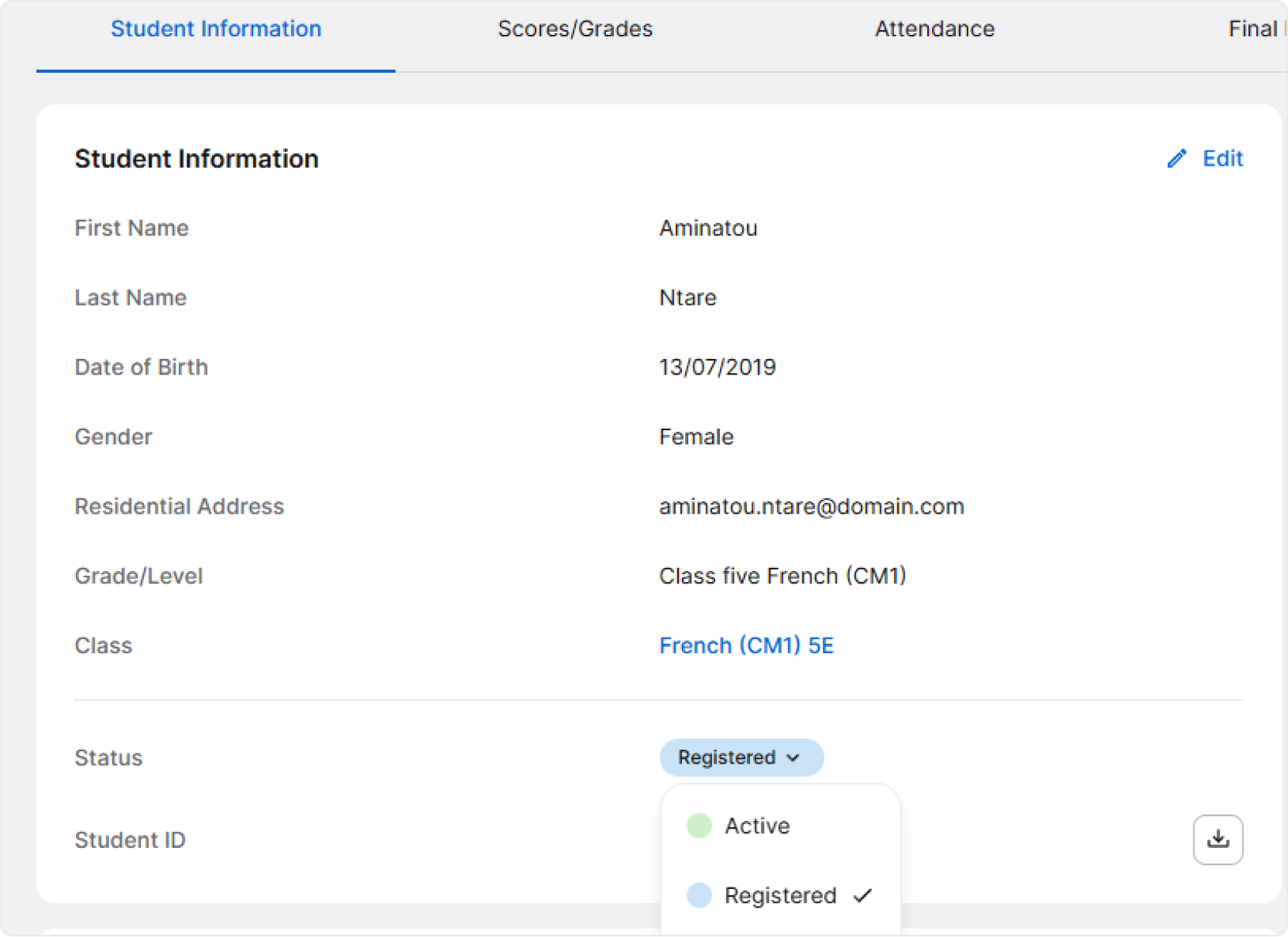
To activate a student, click on the badge with the status and select Active. The student is now active and their profile is ready!