How do I upload, verify, and approve registration documents?
Student Registration
School Owner
Managing student registration involves handling documents required for registration in the school, like birth certificates, residence proof or any other document your school requires. Using AcademIQ, you can keep all of the documents in one place and check if a certain student is ready and has everything that’s needed to register them.
In this article
Click on a link below to jump to each section
In this article
Click on a link below to jump to each section
Uploading Registration Documents
During the add a new student process (How do I add a new student?) you’ll see a section with registration documents. If registration documents for the student you’re adding were already delivered, you can upload them right away.
Otherwise, if the student already has a profile and was added to AcademIQ, navigate to their profile by searching their name in the search bar at the top or in the Students section.
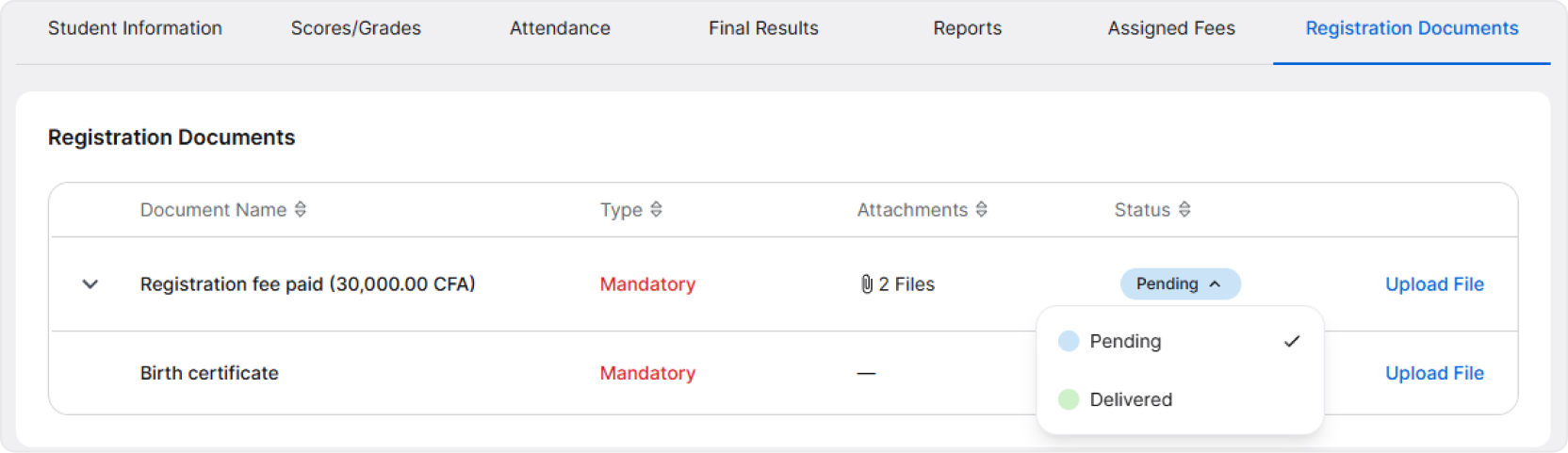
On the student’s profile, you’ll find a Registration Documents tab. Click on it to see tables with registration documents and other registration requirements. To upload a document, click Upload File. A pop-up will open. Upload the document in a supported format and Save.
If a proper document has been uploaded or if the guardian has delivered the document in-person, you can change the registration document status to Delivered.
💡 Note: If a document remains in the Pending status, it will be considered by the system as missing.
Reviewing Registration Documents Uploaded by Guardians
After being added to the system, the student’s guardian can be given access to log into AcademIQ. By giving them access, they’ll have the ability to upload missing registration documents for their child without the need to deliver them in-person or send it to school in any other form.
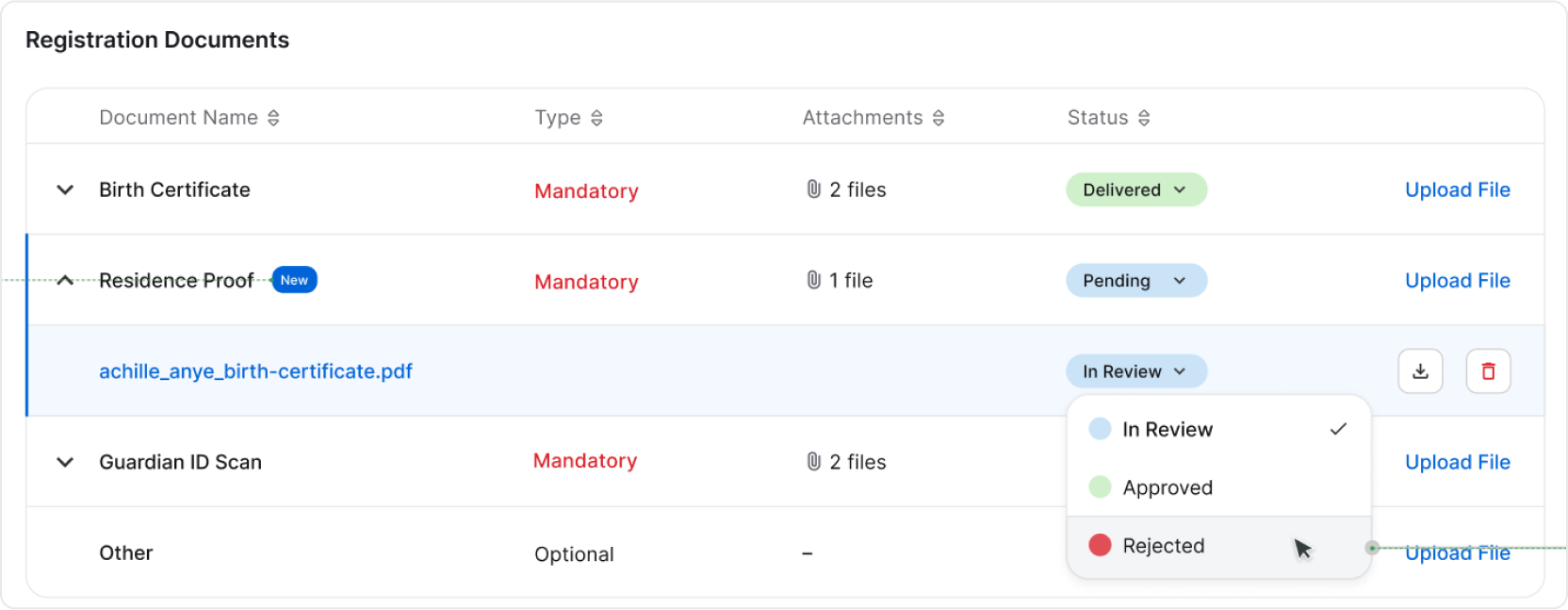
When a guardian uploads a registration document, a system administrator will receive a notification, and it will be visible in the Registration Documents tab on the student’s profile.
Once uploaded, the file uploaded by the guardian needs to be reviewed. It can be approved or denied by the administrator. If denied, the guardian will be notified about the rejection and will need to upload a new, proper file/document.
Next Steps
After all registration requirements have been met and all rmandatory documents have been uploaded and marked as delivered, the student is ready to be activated and registered as an active student. Follow the next guide to continue the student registration process.