How do I assign scores/grades?
Teaching & Student Management
Teacher
This guide will walk you through the steps for assigning scores/grades to your students using AcademIQ. Whether you’re entering results for a recent test, updating assignment scores or revising an exam that a student retook, this guide will help you get it done quickly.
Adding scores/grades to AcademIQ help you track student progress and will allow final results to be calculated automatically for student report cards.
In this article
Click on a link below to jump to each section
In this article
Click on a link below to jump to each section
Assigning a Score/Grade
To assign a score/grade, navigate to the Scores/Grades tab. Either directly on a student’s profile (if you want to add a score to one student, Students > Student Name) or on a Class Page (Your Classes > Class Name).
To assign a score, you can do it quickly by clicking the Assign Scores/Grades button in the header section of the page, or Assign Score to Students that you’ll find in the Scores/Grades tab on the right side.
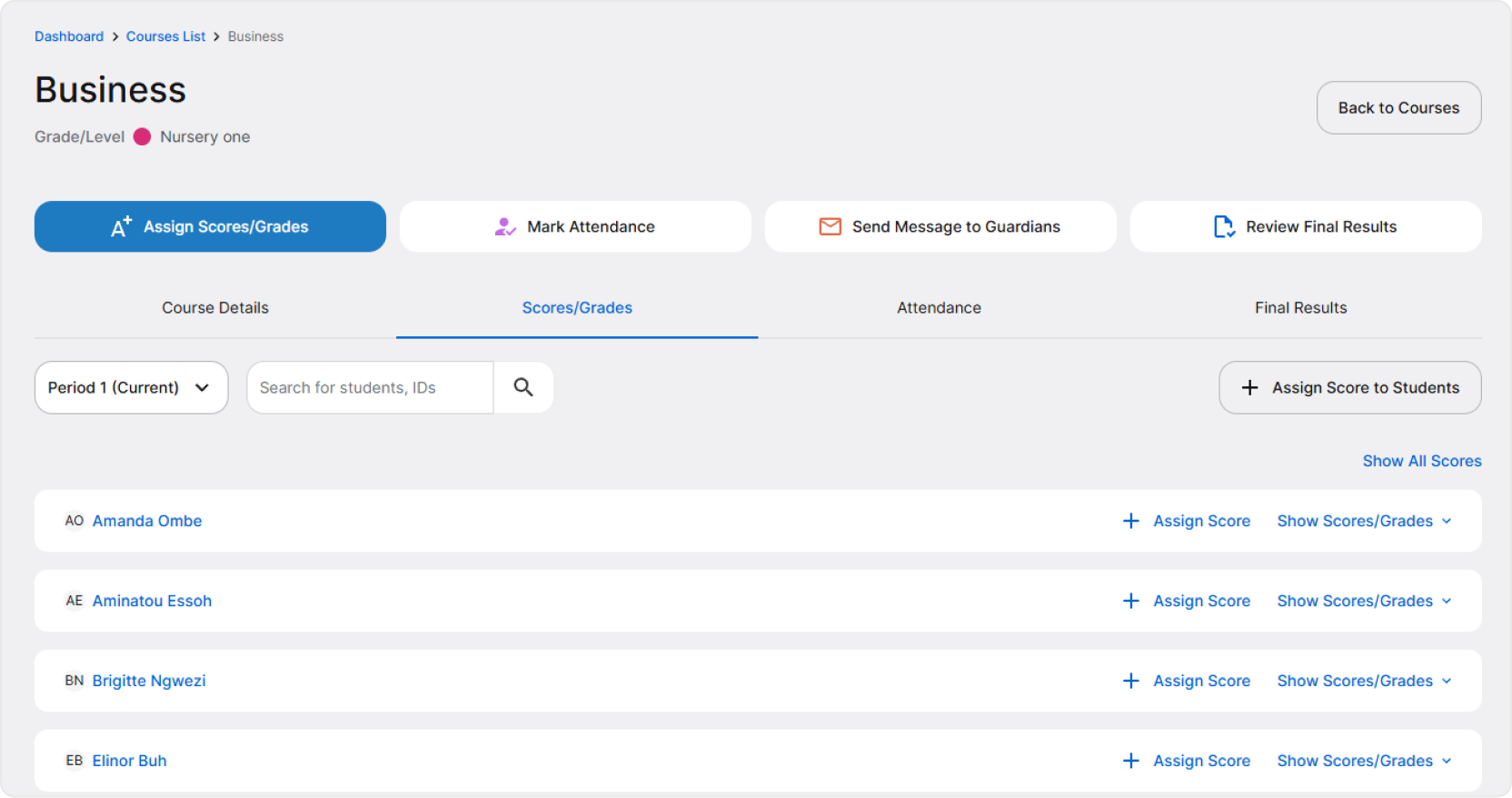
When clicked, a page will open with a form. Fill in all the information about the score/grade, and then confirm by clicking Assign.
Note that the information provided by you when assigning scores will be visible to guardians and school staff with access to students’ academic performance.
💡 When assigning score to students in bulk, the score/grade will be considered mandatory for all students. Which means that if a student was absent or doesn’t have this score, it will be marked on their scores/grades list as missing/absent. Such score can be later updated if the student receives it.
🖋️ Example: There was an assignment, one student was absent. Everyone in class except for that one student received a score/grade. On the absent student’s scores/grades list, you’ll see the score as missing. When the student returns the assignment later, their missing score/grade can be updated.
Viewing Scores/Grades
There are two ways to view and manage scores/grades. You can do it for one student, from a Student’s Profile (Go to Students > Student Name), or for all students in a class, from a Class Page (Go to Your Classes > Class Name).
When viewed from Student’s Profile, you’ll find them in the Scores/Grades tab. You can assign a score/grade to this student directly from here.
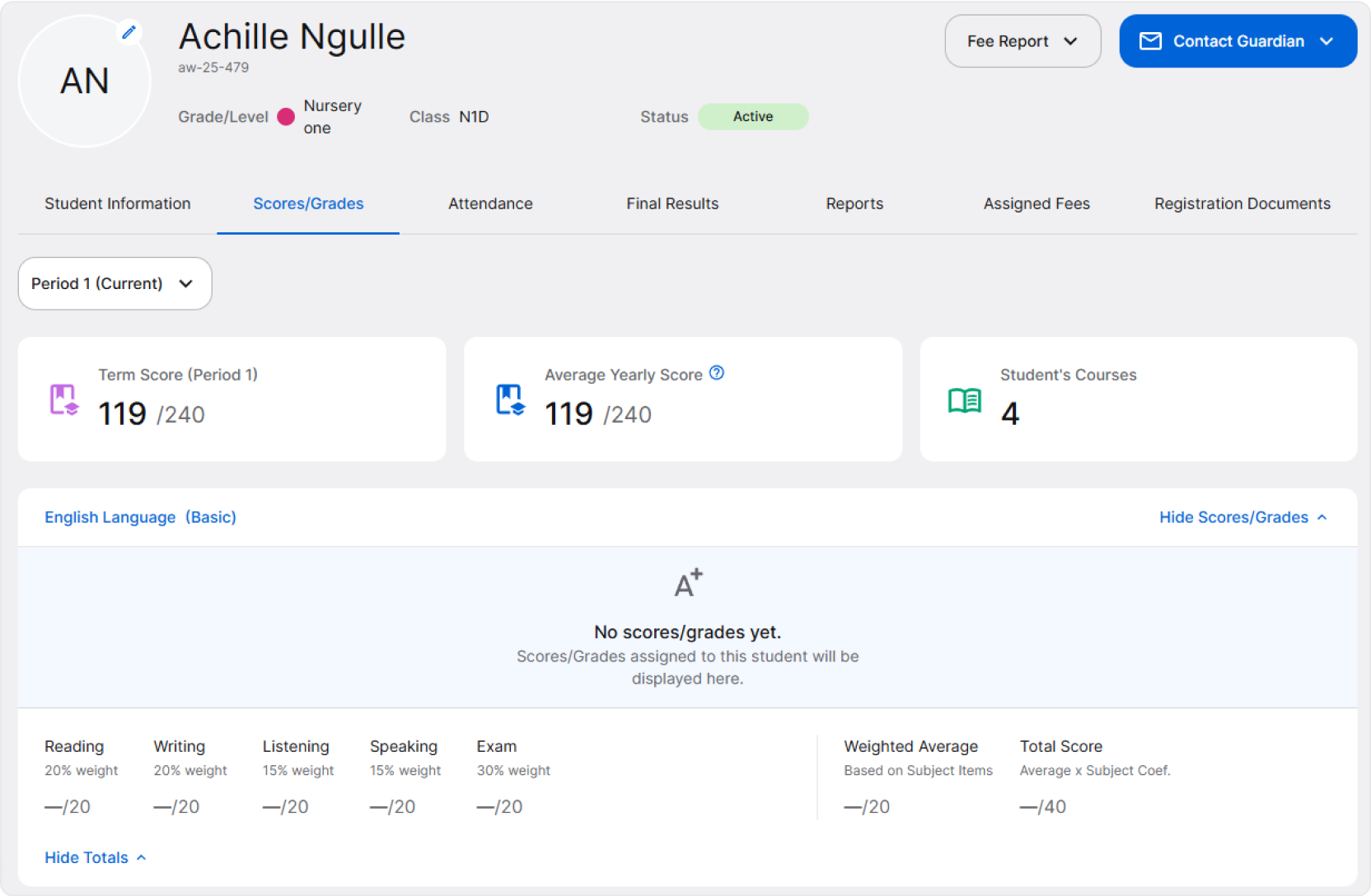
On a Class Page, scores/grades can be found in the same place – Scores/Grades tab. They may not be visible at first, so when they’re collapsed, click Show Scores/Grades or Show All Scores on the right to reveal them.
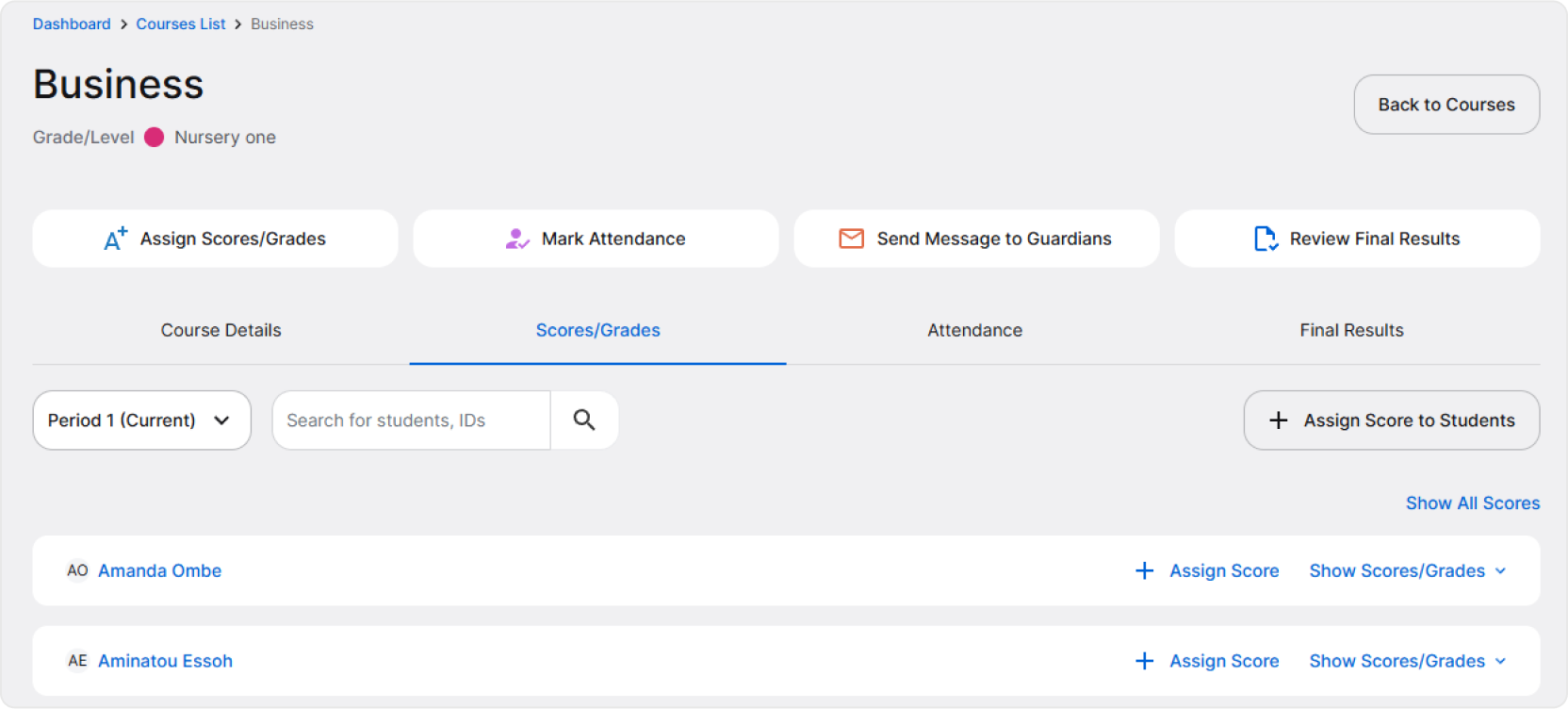
At a first glance, you can see the scores/grades displayed in a form of clickable cards. You’ll see most basic information, such as the score, subject item (for example: homework, test, assignment) and date when it was added.
To show more details, click on any score’s card.
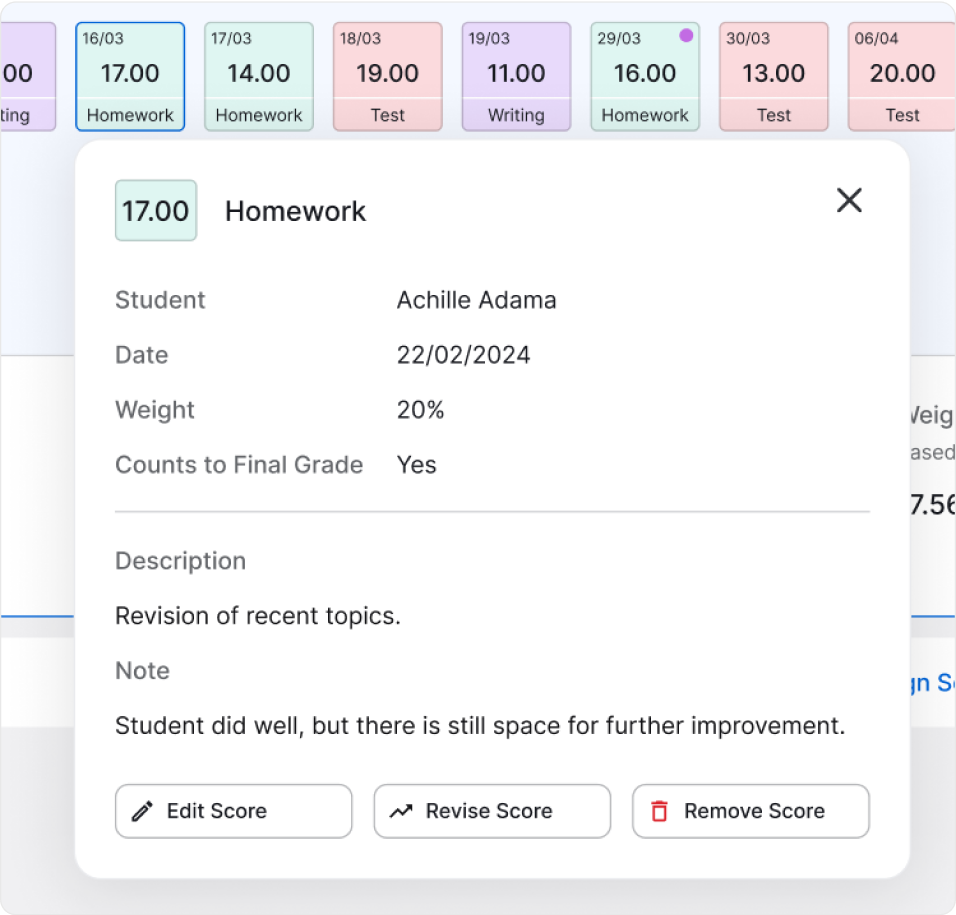
Clicking on a score will open a pop-up. Find all score/grade details there:
- Student – to whom the score/grade is assigned.
- Date – date when the score/grade was assigned.
- Weight – same as the weight of the subject item (for example: homework).
- Counts to Final Grade – informs if the score/grade will be calculated to the student’s final result.
- Description – any description, for example what the score/grade is for.
- Note – any comment or remark on the score/grade or student’s performance.
💡 Subject items are specific assessment topics or tasks within a subject that are individually graded and then totaled to calculate the final grade for a term or school year. They are added by the school for each subject. Examples of subject items: homework, test, exam.
Below the information, you’ll have three actions:
- Edit Score – Use it to edit any information about this score, for example if a mistake was made when a score was being assigned.
- Revise Score – Used in situations when a student’s grade needs to be changed after a reassessment of their work. If a score was revised, you will see the previous score.
- Remove Score – Deletes a score/grade and is an irreversible action.
🖋️ When to edit a score and when to revise? Edit a score if you’ve made a mistake. For example, if you’ve entered a wrong score/grade value. Information that a score was edited will not be visible or shown in any way. Revising a score is used when, for example, a student scored 10.00 in an exam, retook it and scored 18.00. Information about previous score and about revision is kept and shown, visible to the student’s guardians as well.