How do I manage report cards?
Teaching & Student Management
Teacher
School Owner
This guide will show you how to create, update, and share report cards using AcademIQ.
In this article
Click on a link below to jump to each section
In this article
Click on a link below to jump to each section
Reports Availability
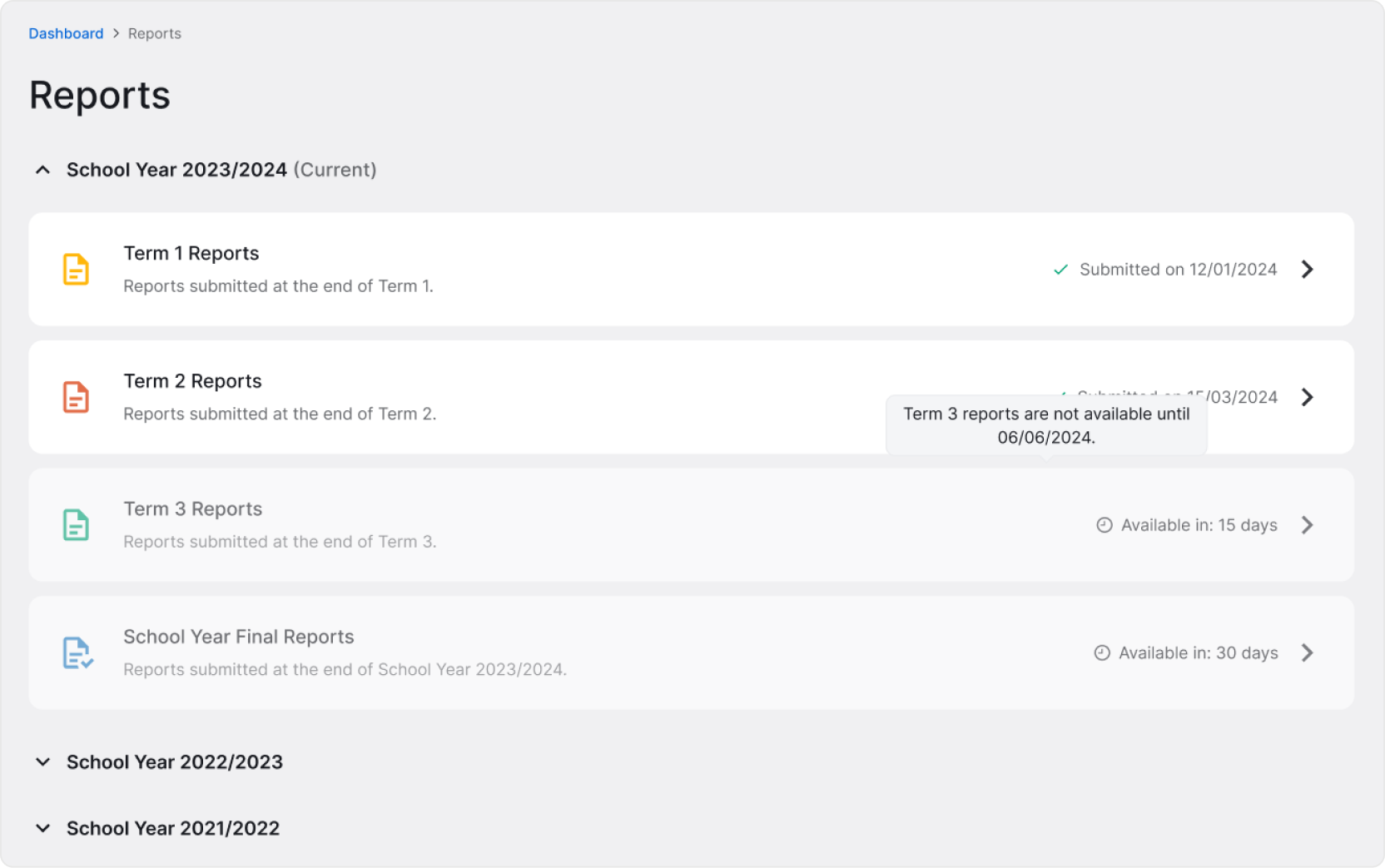
Go to Reports by finding it in the left-side menu. You’ll see cards for each term report and for a school year final report. Reports become available when final results submission period opens. It’s a time window during which teachers are expected to submit final results for their classes and, after all results are ready, report cards can be created.
❓ To learn more about reviewing and submitting final results, check out the How do I submit final results? guide.
Submitting Report Cards
Go to Reports by finding it in the left-side menu. You’ll see cards for each term report and for a school year final report. Reports become available when final results submission period opens. It’s a time window during which teachers are expected to submit final results for their classes and, after all results are ready, report cards can be created.
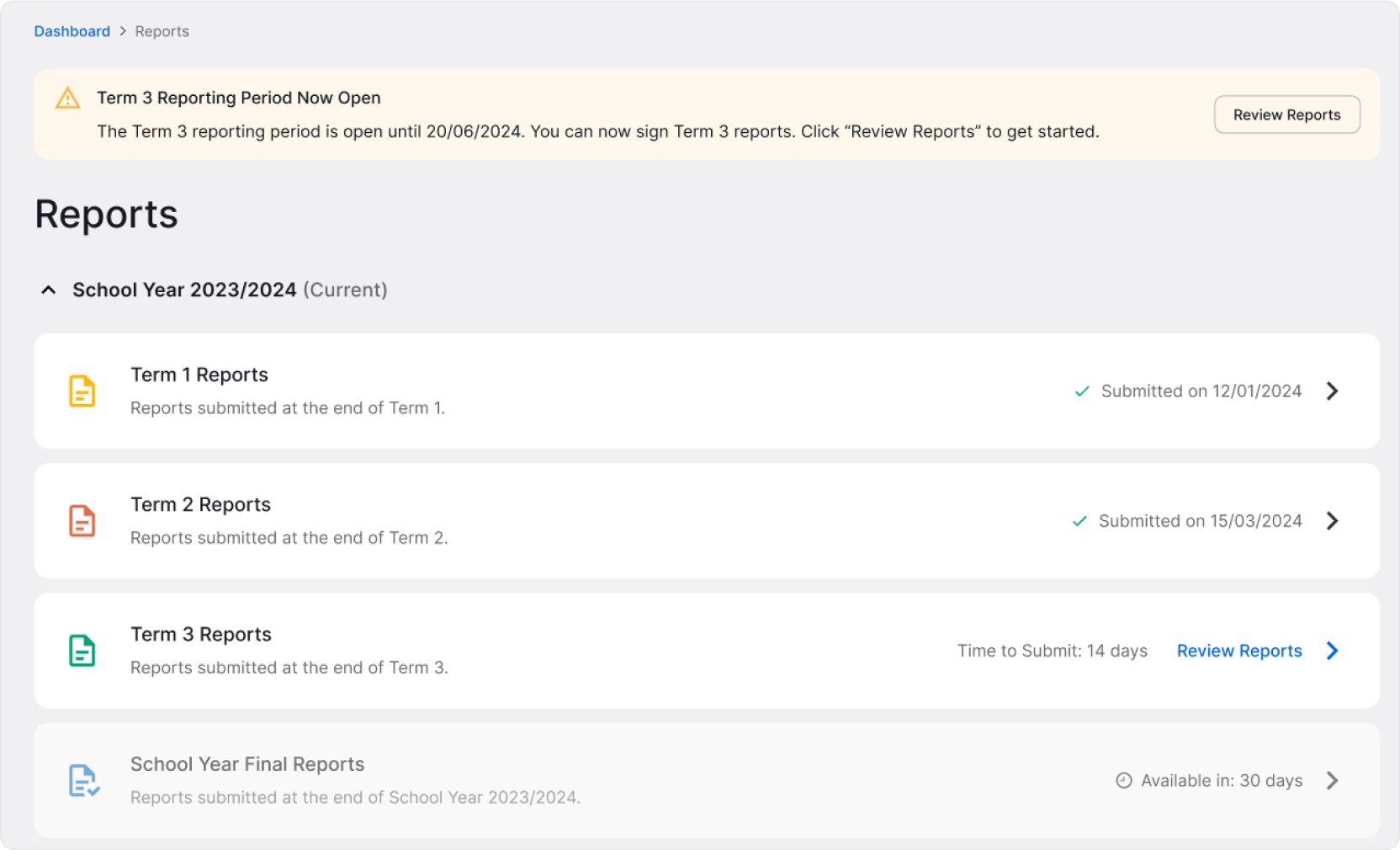
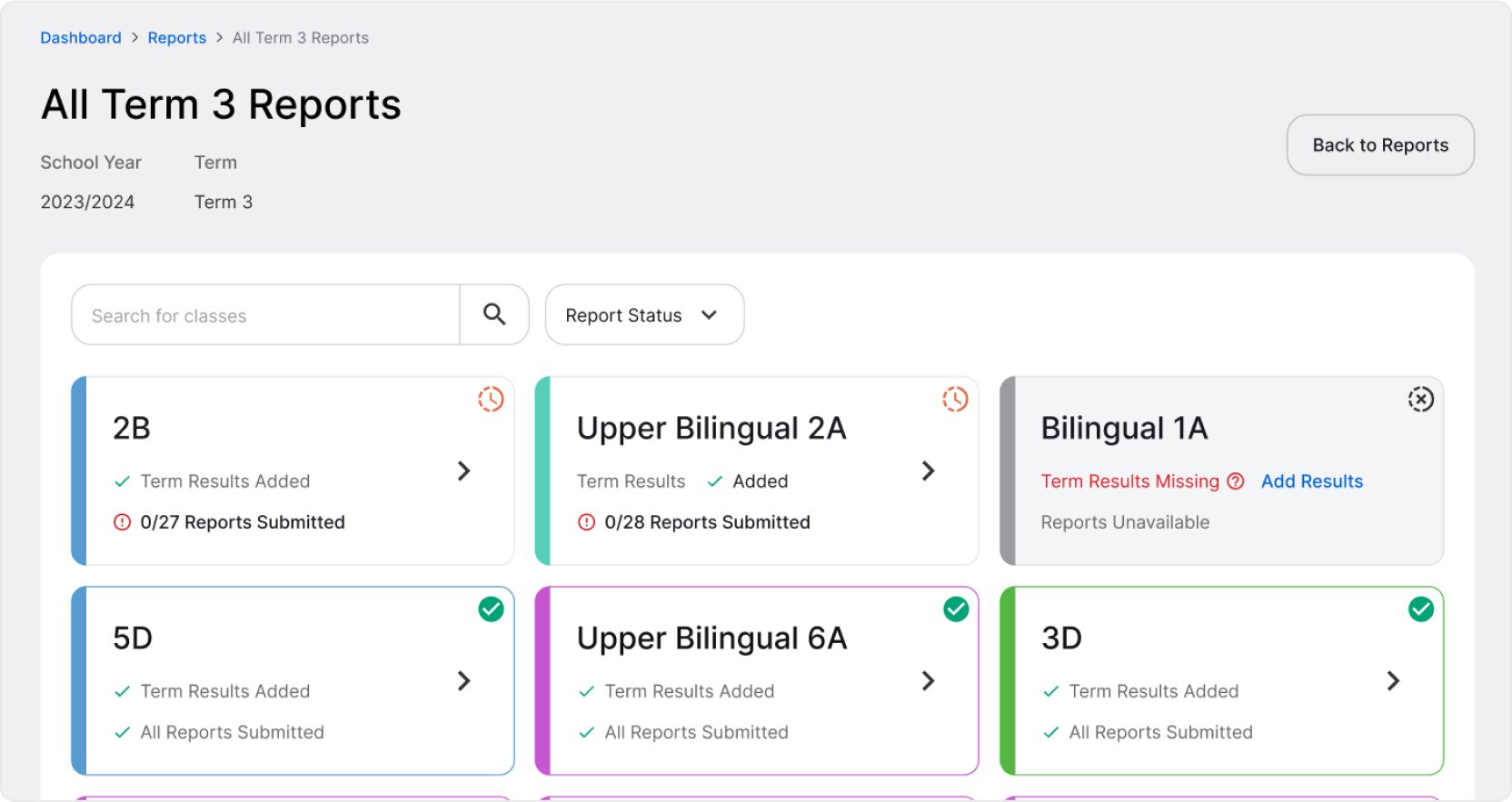
When reports for a term or school year are available, click Review Reports to begin. You’ll see a list of all classes. At first, all reports may be unavailable. Cards resembling each class will have a grey background and there will be a red Term Results Missing warning.
It means that final results haven’t been submitted yet by all subject teachers. Reports can only be generated once all final results are in. Please wait until teachers complete this step.
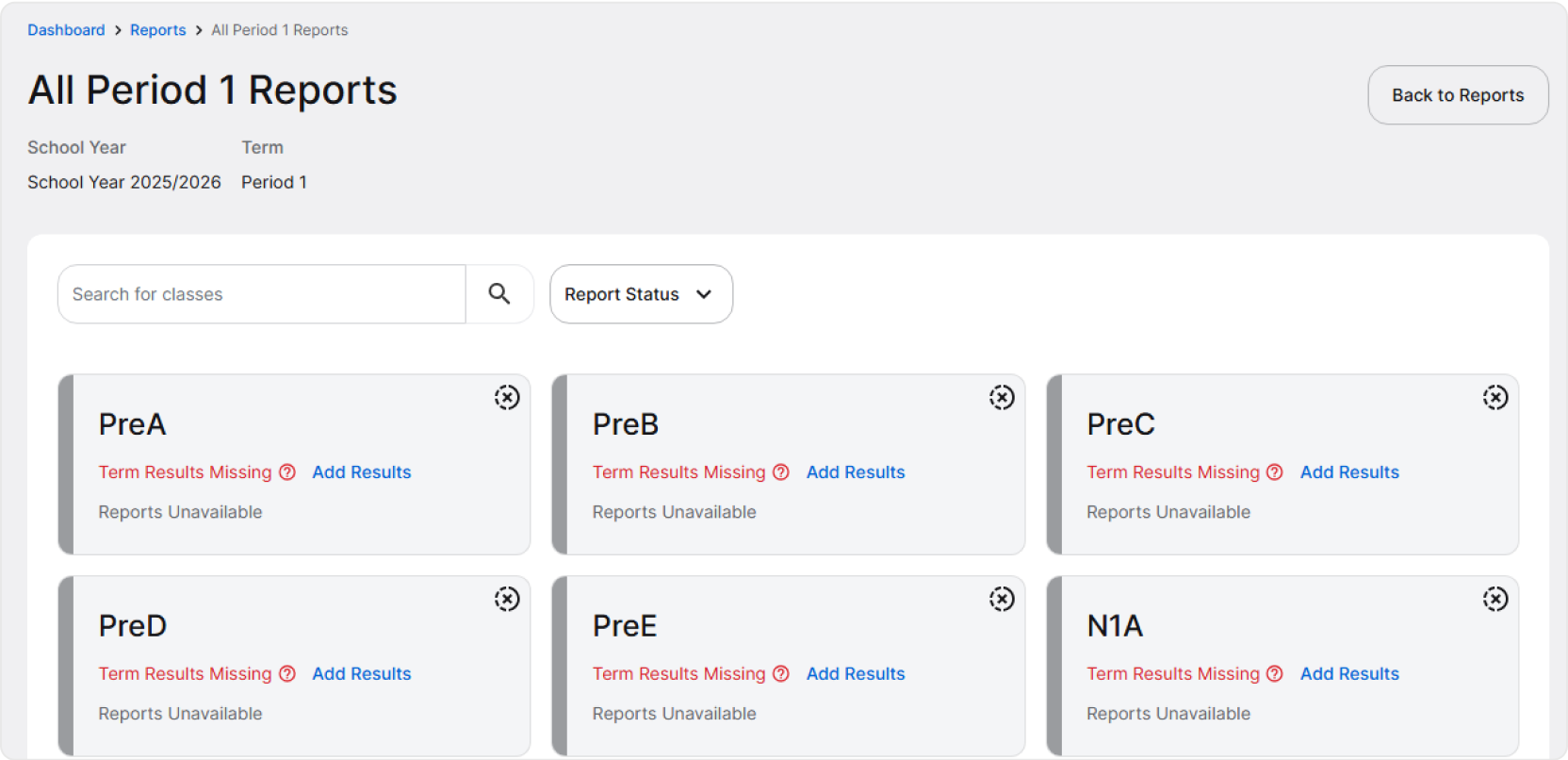
Once the results are submitted, you’ll see that reflected on the class cards. You can then click on a class card to access the reports page.
There, you’ll be able to view the generated report for each student. You can either submit them individually or all at once using the Sign All and Submit button at the top.
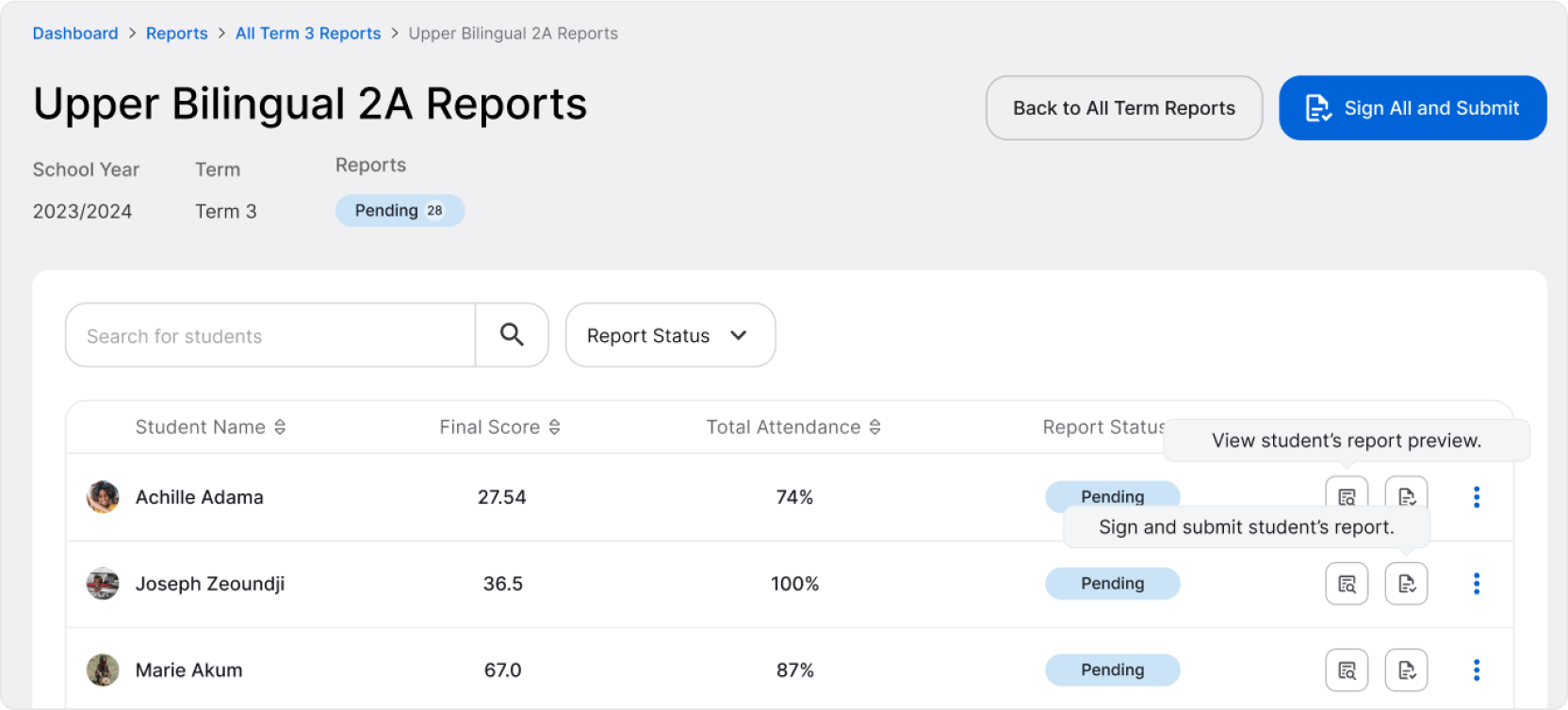
After signing and submitting for all students in the class at once, you’ll get a confirmation pop-up. All you need to do is confirm and all the reports will be completed, automatically loaded with all students’ final results.
💡 The process of signing and submitting reports may take a while, so please give it a moment to load all students’ data and finalize the reports.
Repeat the same steps for each of the classes to complete the report submission process. When completed, you’ll see a confirmation on the reports card.
💡 As long as the report submission period is open, you can still make changes to the reports. However, after the report submission period closes, you won’t be able to make any changes to the reports.
Accessing Past Report Cards
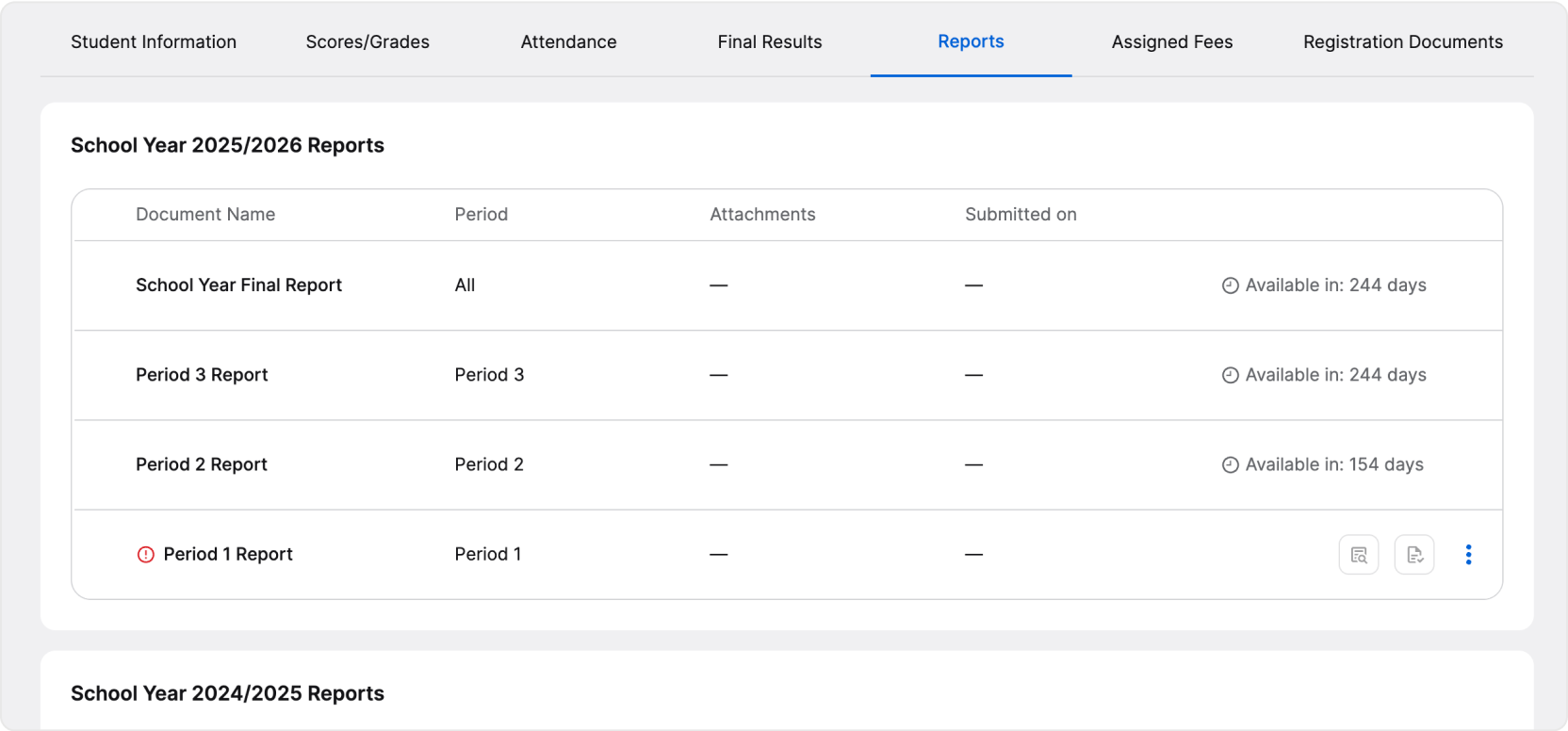
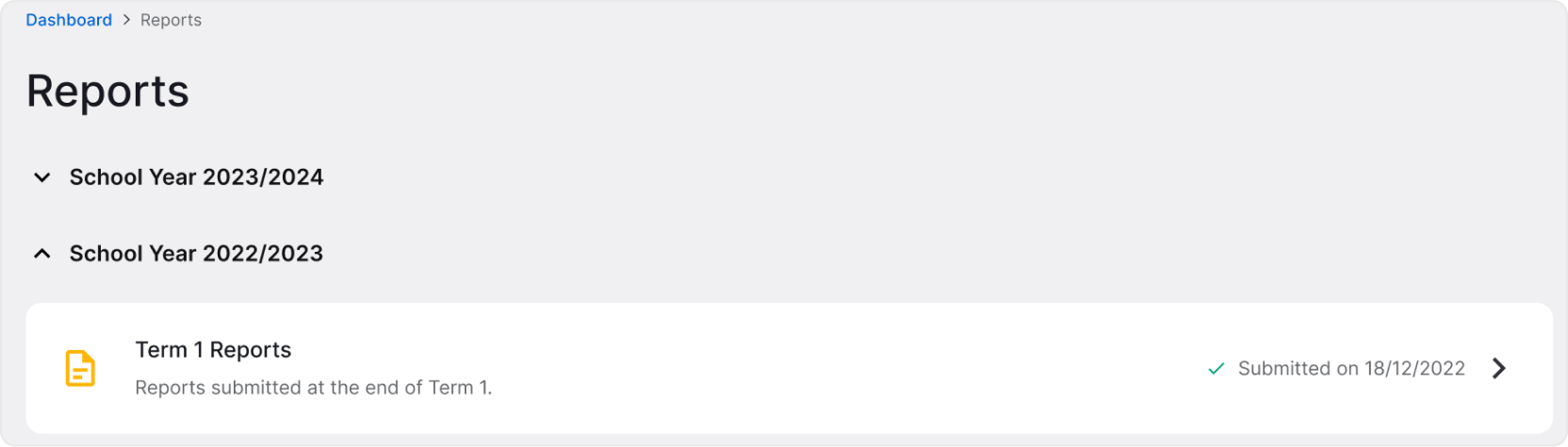
You can view report cards submitted for previous terms and school years anytime. To do so, either navigate to Reports, find and select the school year and term you’re interested in or view reports directly on a student’s profile.
Navigate to Students > Student’s Name and click the Reports tab. You’ll find all of the student’s report cards there.