How do I find my way around the Parent App?
Parent App
Parent
Welcome to the Parent App! This guide will walk you through the basics of using the app. In the other guides in this category, you’ll find important information about your child’s school life – navigating key features like grades, attendance, messages, and more.
Whether you're logging in for the first time or just need a quick refresher, here’s everything you need to know to get started with confidence.
In this article
Click on a link below to jump to each section
💡 You can access AcademIQ using your internet browser or download the Parent App for your phone. Get AcademIQ on Google Play Store.
In this article
Click on a link below to jump to each section
💡 You can always find more details or navigate to a dedicated section by using the View All buttons on the top right of each card.
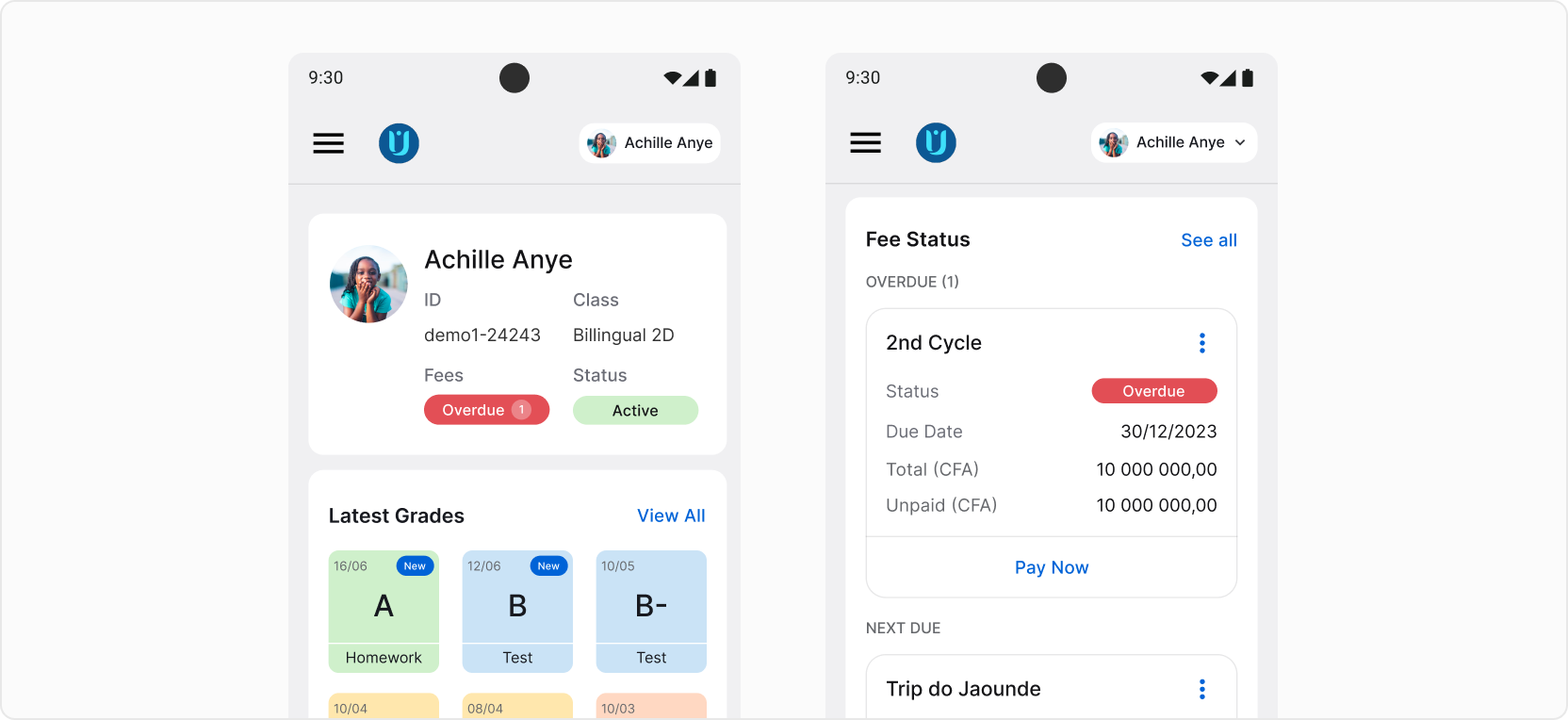
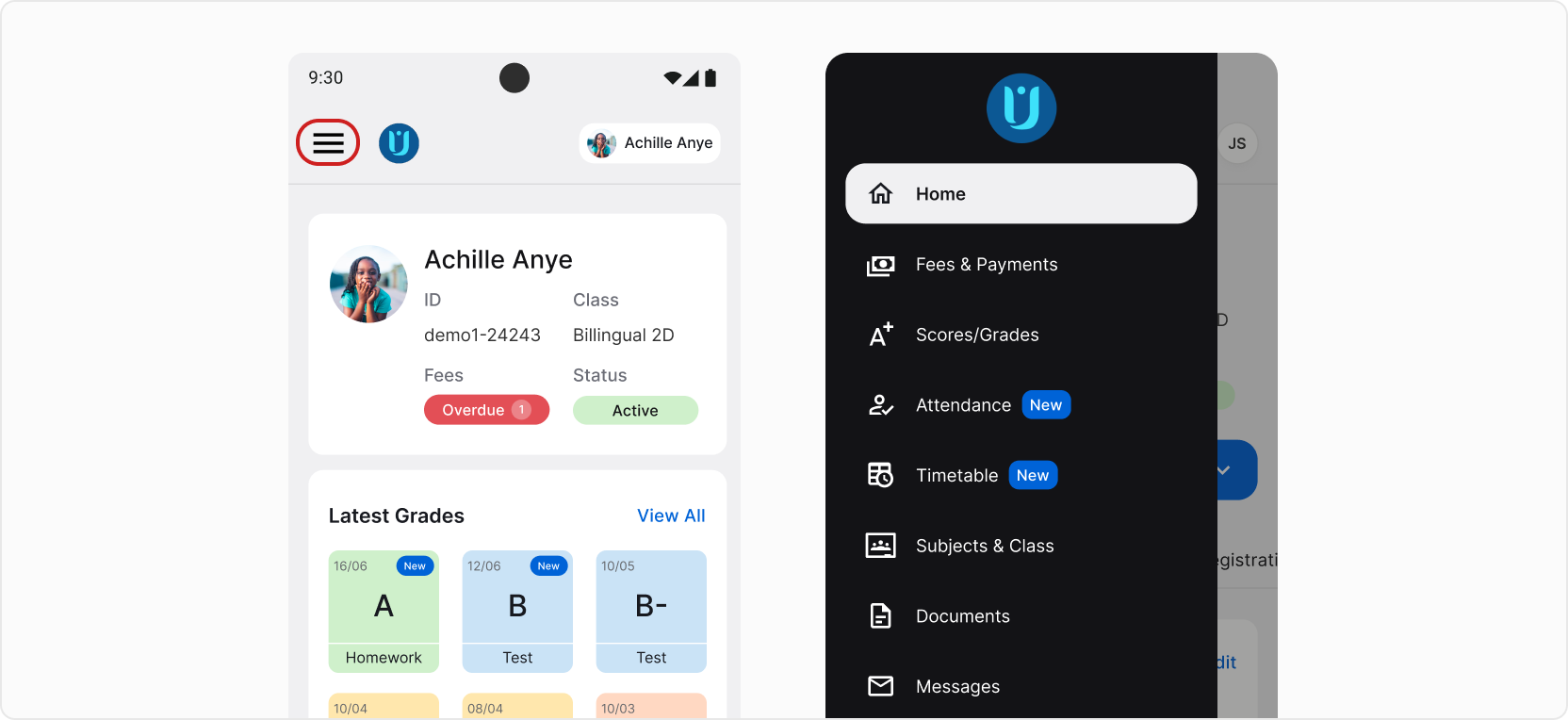
Each section of the application can be easily accessed using the left-side menu. You can open it anytime by tapping the icon in the top-left corner. Then, tap any of the sections to go there.
Find more information about each of the sections in the next guides.
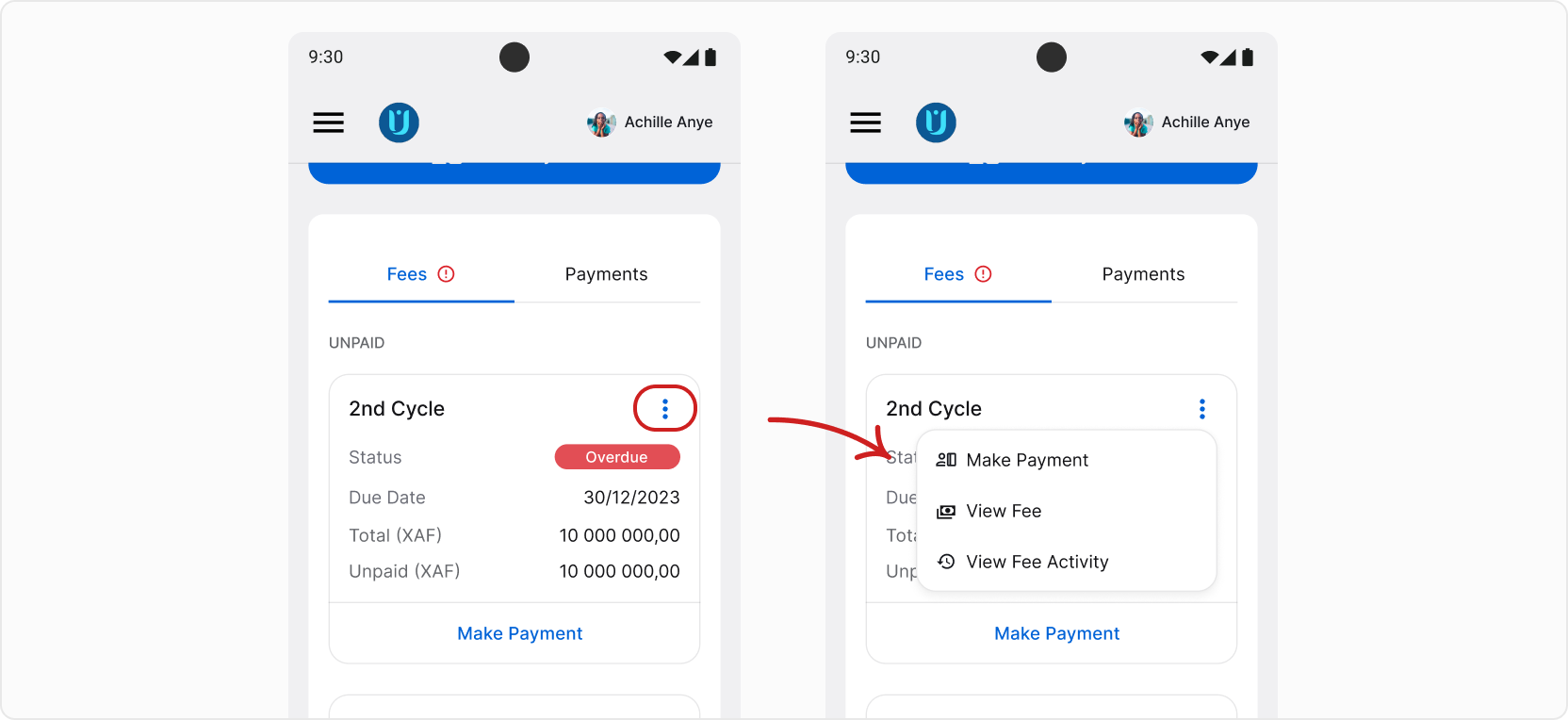
Some cards have the three-dots icon in the top right corner. Tapping them will reveal additional options, such as Make Payment for a fee.
Switching Between Children
If you have more than one child in AcademIQ, you can easily switch between them anytime. Use the button in the top right corner of the app. Tapping it will reveal a list of all of your children. Tap on the child you want to switch to.
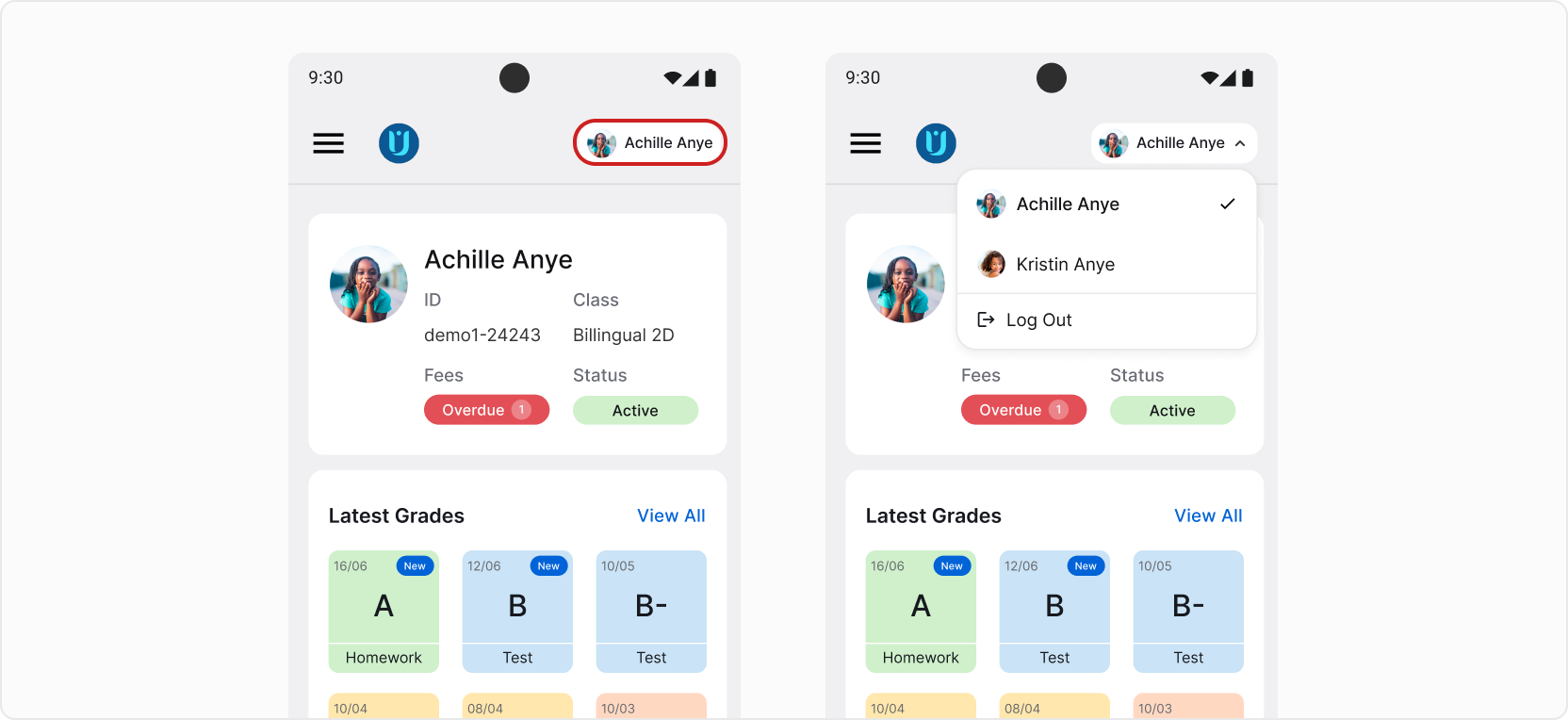
❓ Don’t see your other children? Please contact your school for assistance.
You can switch between terms and year overview anytime by tapping the button on top. In this tab you’ll find a total summary of your child’s performance in the selected period of time. Summaries presented here will be shown on your child’s report card.
For more details, scroll down, where you’ll see final results for each of your child’s subjects. To access even more detailed calculations and results, tap the Show Details button.
Next Steps
Now you know all the basics of the Parent App! Get to know each feature better by exploring the For Parents/Guardians section of the Help Center.