How do I make a payment?
Parent App
Parent
Need to make a payment? This guide will walk you through each step, from viewing what’s due to completing your payment safely. It’s quick, secure, and designed to be as easy as possible – no tech skills needed.
In this article
Click on a link below to jump to each section
In this article
Click on a link below to jump to each section
Viewing Fees and Tracking Payments
Use the left-side menu and tap the Fees & Payments tab.
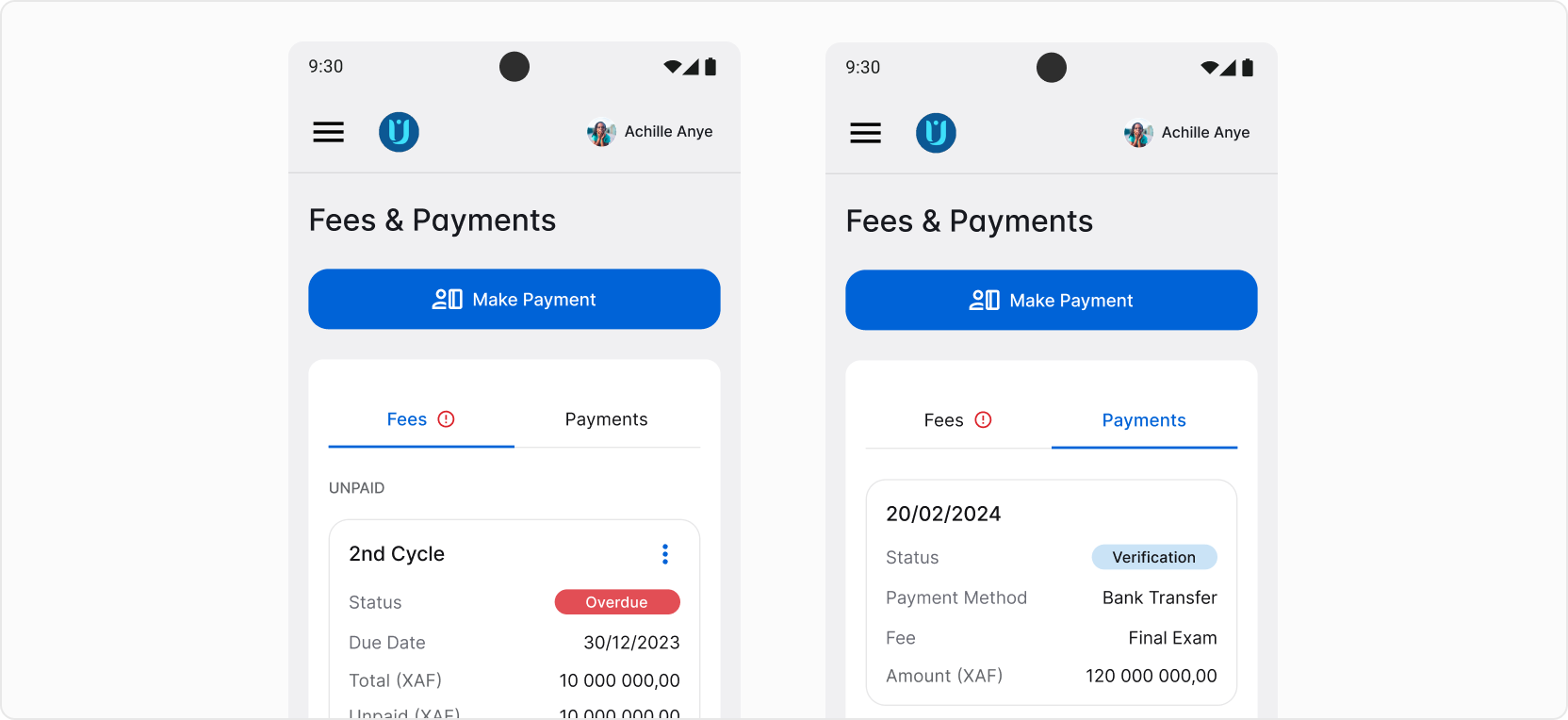
You’ll find all fees assigned to your child here, along with their status, due dates, and amounts to be paid. Paid fees will also appear on the list, below all unpaid fees, so you can keep track of them as well. You can tap on the three dots in the top right corner of a fee card for options. Use View Fee to access more details about a fee or View Fee Activity to track all activities related to the fee.
💡 AcademIQ will notify you if a fee is due or overdue.
In the other tab, Payments, you’ll see similar cards for each payment made, providing you with information about the date, status, payment method, fee, and paid amount.
Paying a Fee
To pay a fee, use the Make Payment button on top or select a fee you want to make payment for from the list below and click Make Payment on the fee card.
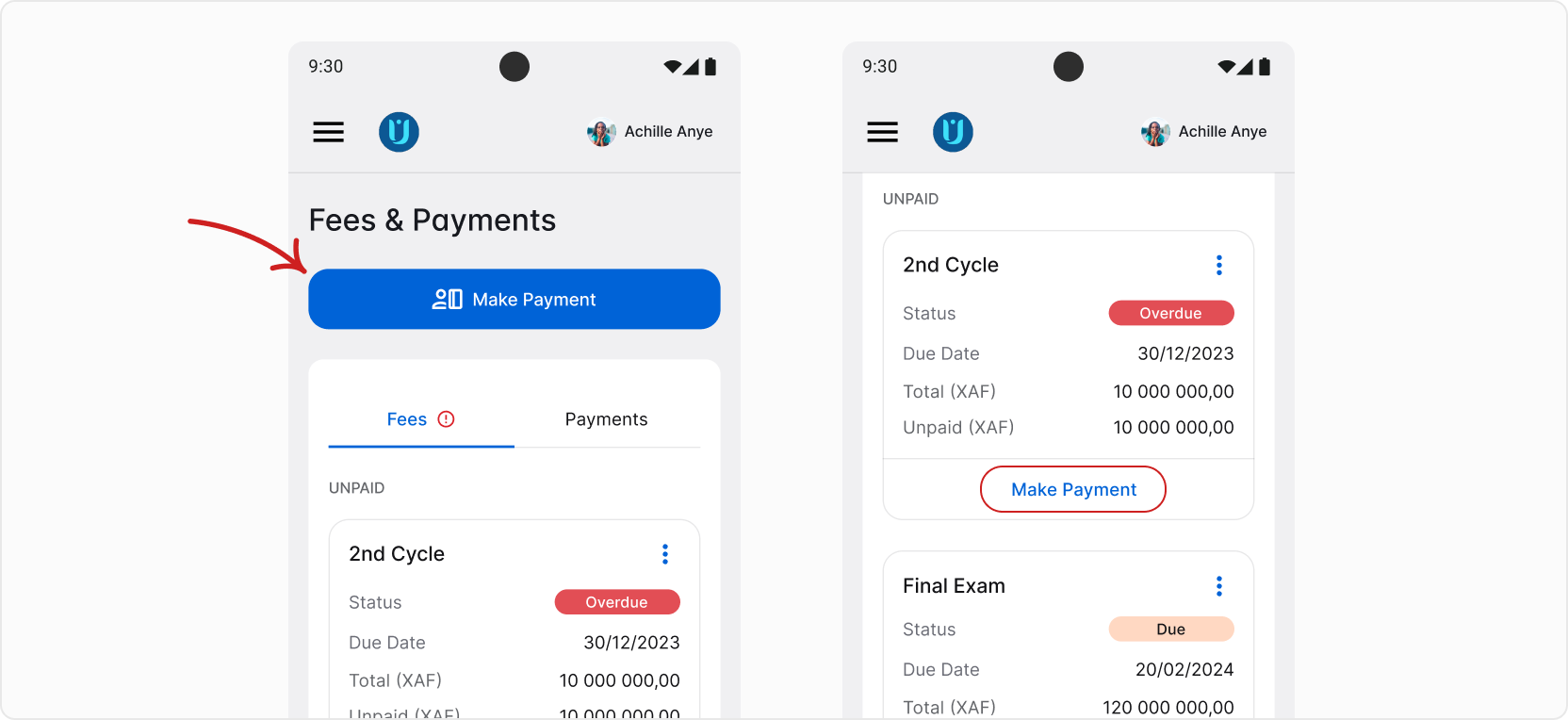
If you opened the Pay Fee form using the button on top, you’ll need to select which fee you’d like to pay. Otherwise, if you picked a fee from the list, it will already be selected.
Proceed by selecting the amount you want to pay. You can either pay in full or pay partially.
Next, select a payment method. You will see all payment methods that your school allows, so it’s possible that you may not see the payment methods described below. Next steps differ depending on the payment method you select.
MTN Mobile Money/Orange Money
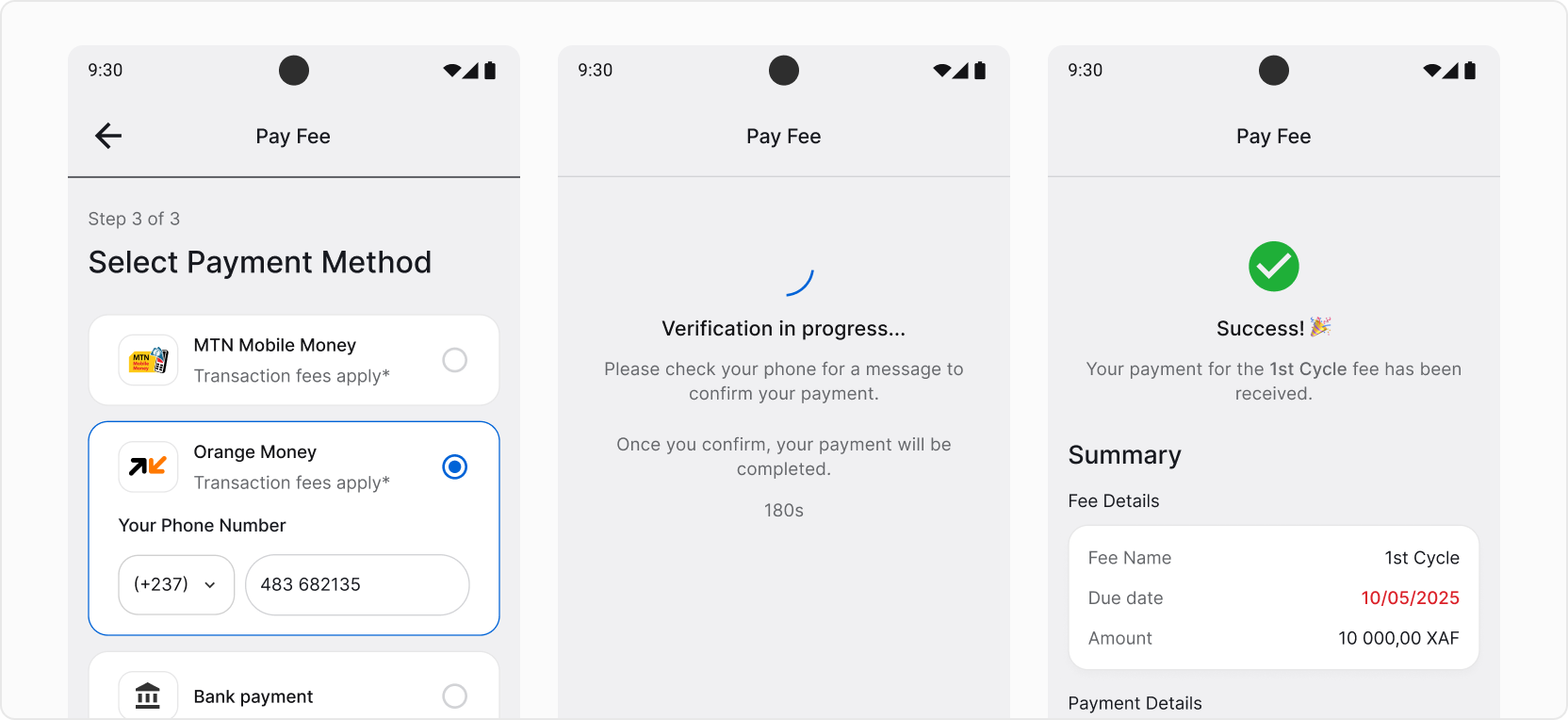
To make a payment using mobile money, simply pick either MTN or Orange, provide your phone number and tap Pay Fee. Then, you’ll see a verification screen. It’s a time for you to confirm your payment on your phone. You should get a confirmation message.
Once confirmed, the payment will be completed.
Bank Transfer
To pay by bank transfer, you’ll need to provide a payment confirmation. To do so, go to the bank and make a payment with the information presented on the screen. Remember to take the receipt or payment confirmation from the bank.
❗ Providing the information is crucial for identifying and verifying your payment by the school. Make sure you include the name of the fee you’re paying and your child’s name and surname or ID (identification number). Otherwise, there may be problems with finding and registering your payment.
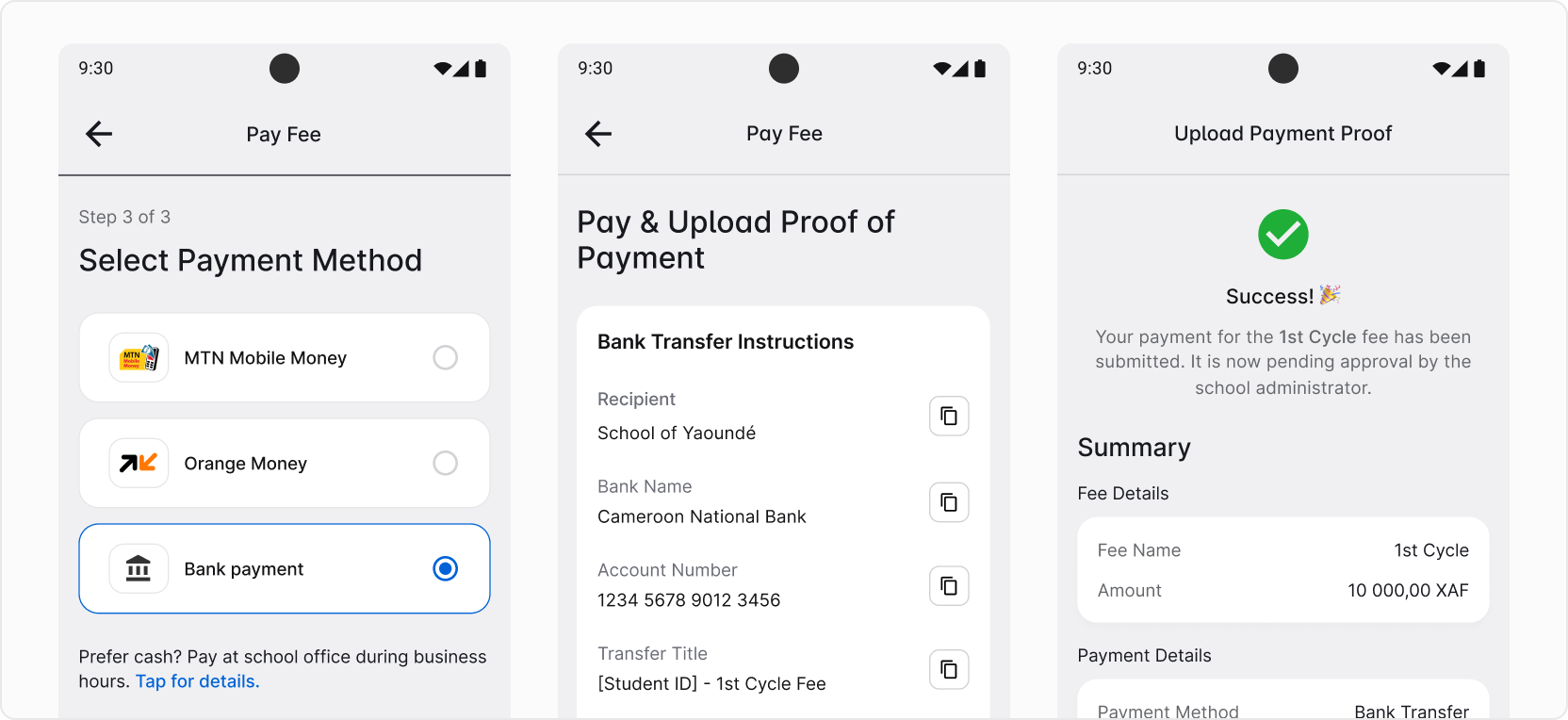
After making the payment, take a photo or scan of the receipt/payment confirmation received from the bank. Then, on the Pay & Upload Proof of Payment screen, scroll down and upload it.
The payment has been recorded in the app. Now you have to wait for a school administrator to review the payment and approve it.
💡 AcademIQ will notify you when the status of your payment changes.
Cash Payment
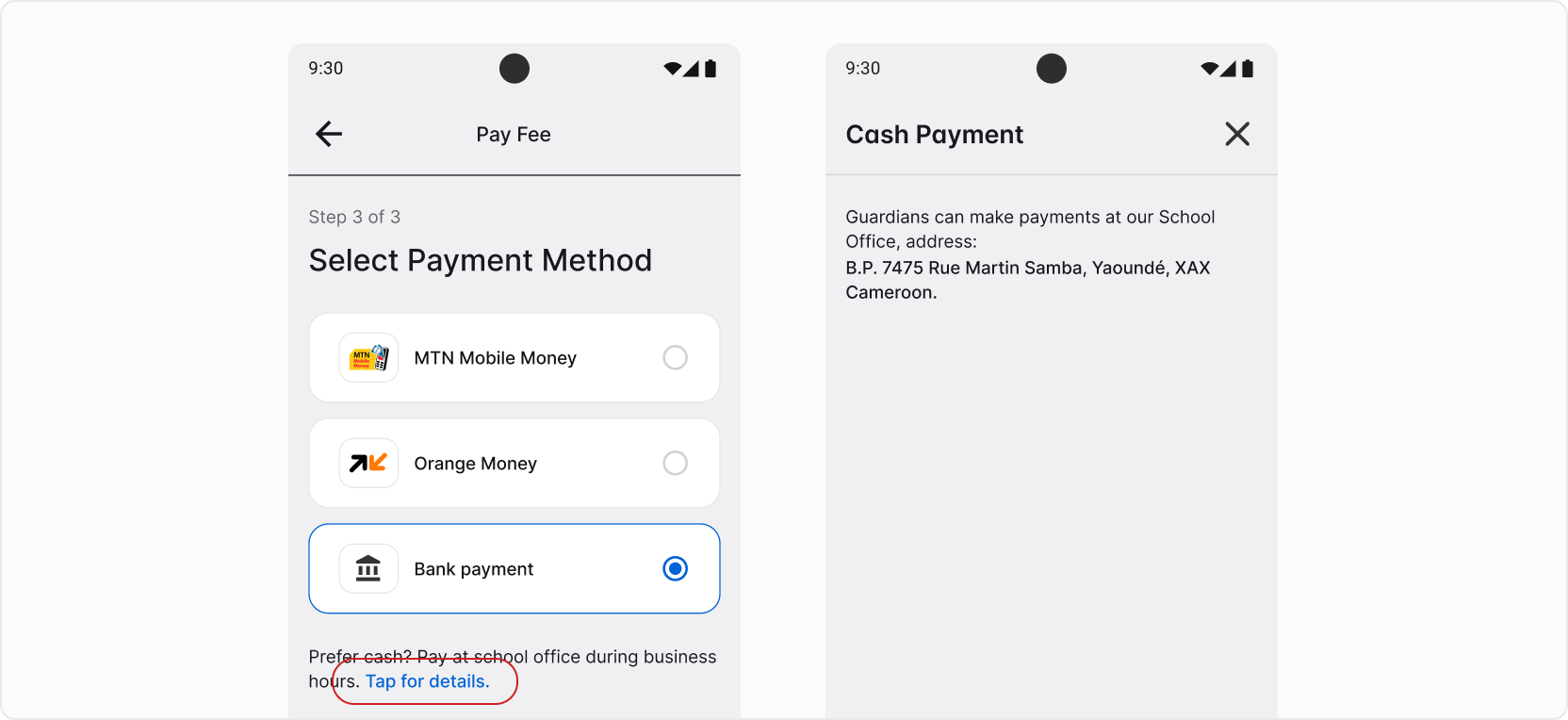
You may also have the option to pay by cash. To do so, look below all the payment options and find Tap for details. You’ll find the details shared by your school about where to go if you prefer to pay in cash.