How do I submit documents?
Parent App
Parent
Need to share documents with the school? This guide walks you through how to upload and submit documents securely – whether it’s a birth certificate, residential proof, or anything else your school requires. Here, you’ll also find your child’s school report cards.
Viewing Documents
To access documents, tap Documents on the left-side menu. What you’ll see first are your child’s report cards. If any report cards have been submitted by the school, you’ll find them here. You can always switch between school years using the button on top. To open a report, tap View.
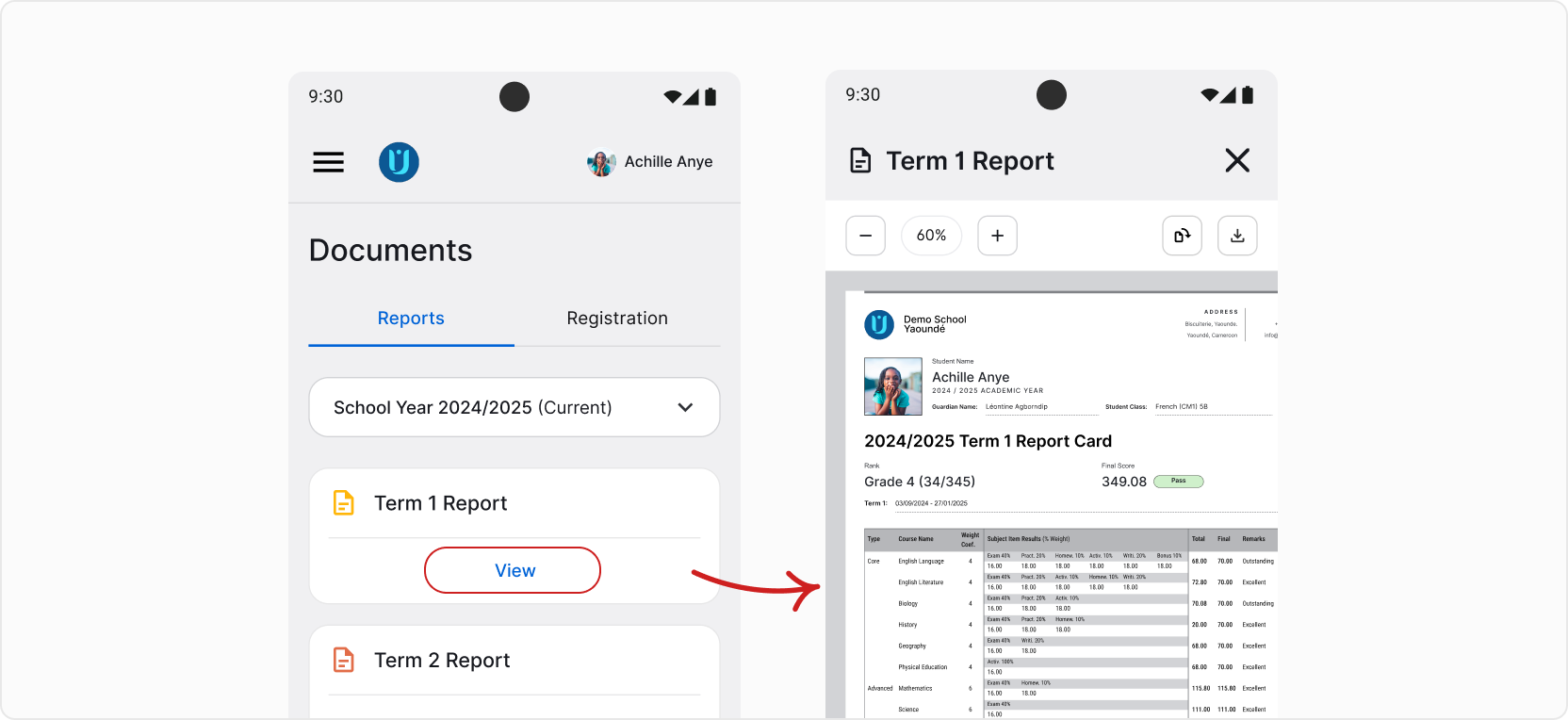
Go to the second tab – Registration to access registration documents. If your child is registered in the school, but you still need to provide some documents needed in the enrollment process, you can submit them here or view already submitted documents.
On this page, you’ll see a list of required and optional documents. If you’re missing a mandatory document, you’ll see a Missing! status on its card. All documents with this status need to be delivered to the school, either in person or submitted using AcademIQ.
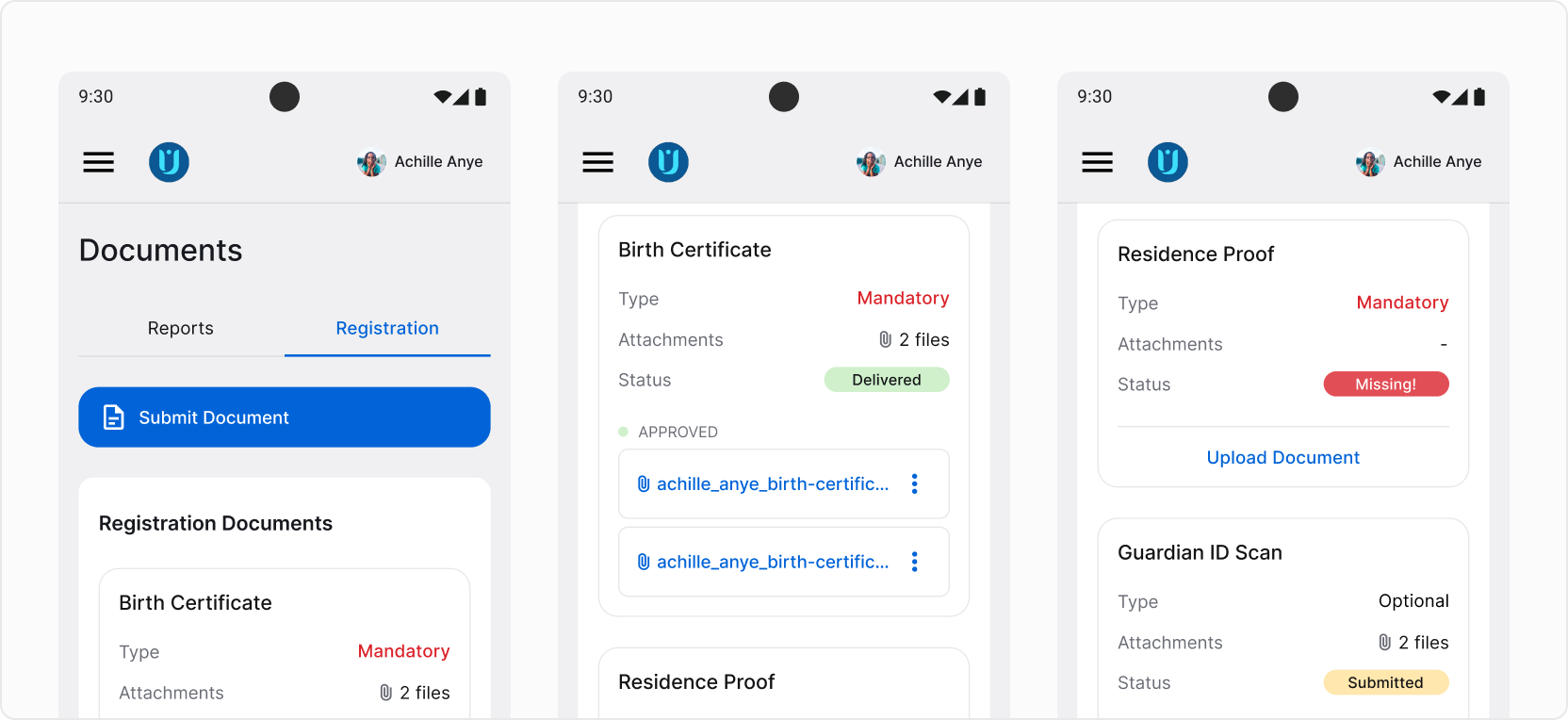
Submitting a Document
To submit a document, use the Submit Document button on top or find the document you want to submit on the list below and tap Upload Document.
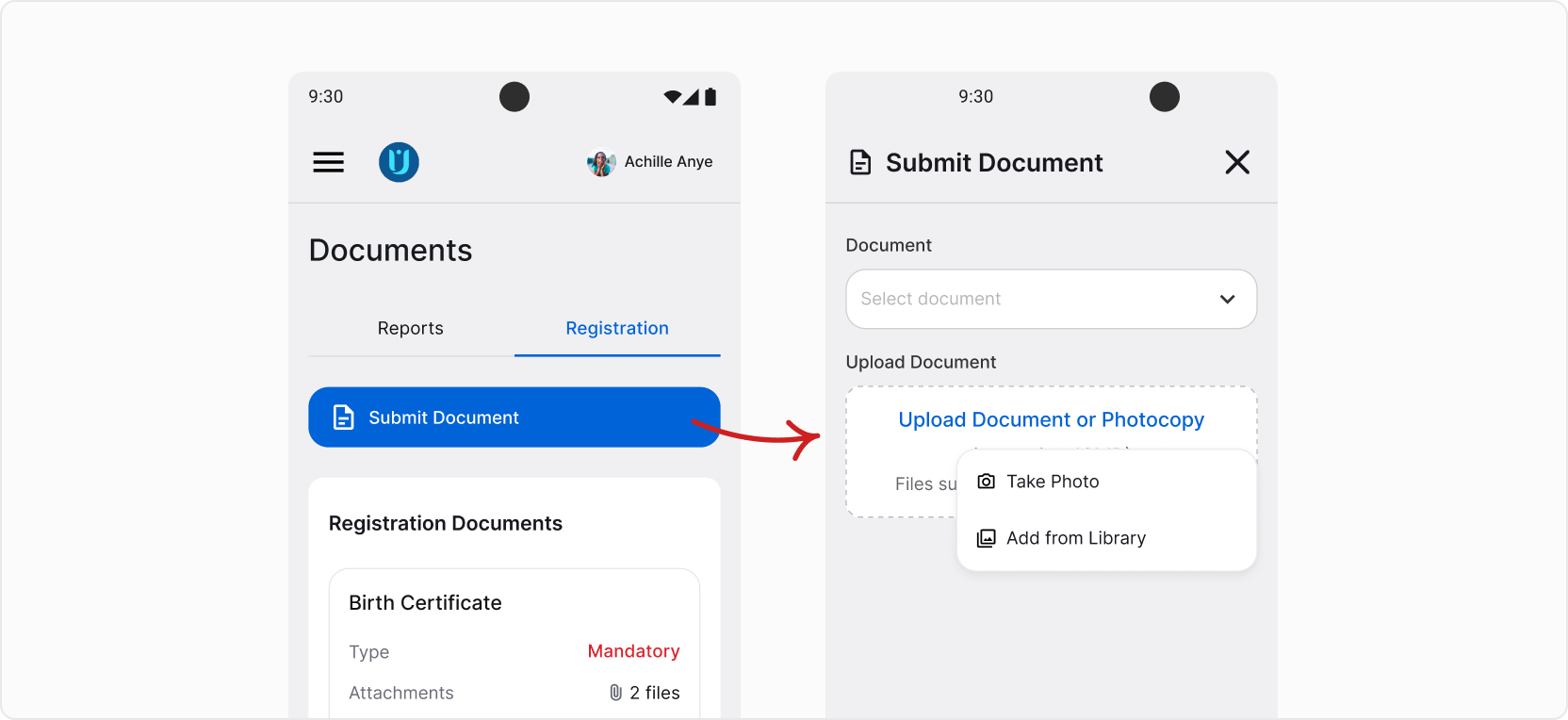
A form will open. Depending on how you opened it, you’ll either have to select the document you’re submitting or it will already be selected, if you’ve picked it from the list.
Now, simply tap Upload Document or Photocopy and take a photo of the document or add it from your photo library if, for example, you have a scan or you’ve previously taken the photo. Proceed by tapping Submit.
All done! The document has been submitted and will wait for a school administrator’s confirmation.
💡 AcademIQ will notify you when the status of a submitted document is updated.