How do I view my child’s scores or grades?
Parent App
Parent
Stay up to date with your child’s progress. This guide shows you where to find their latest scores, term grades, and overall performance – all in just a few taps.
In this article
Click on a link below to jump to each section
In this article
Click on a link below to jump to each section
Viewing Scores/Grades
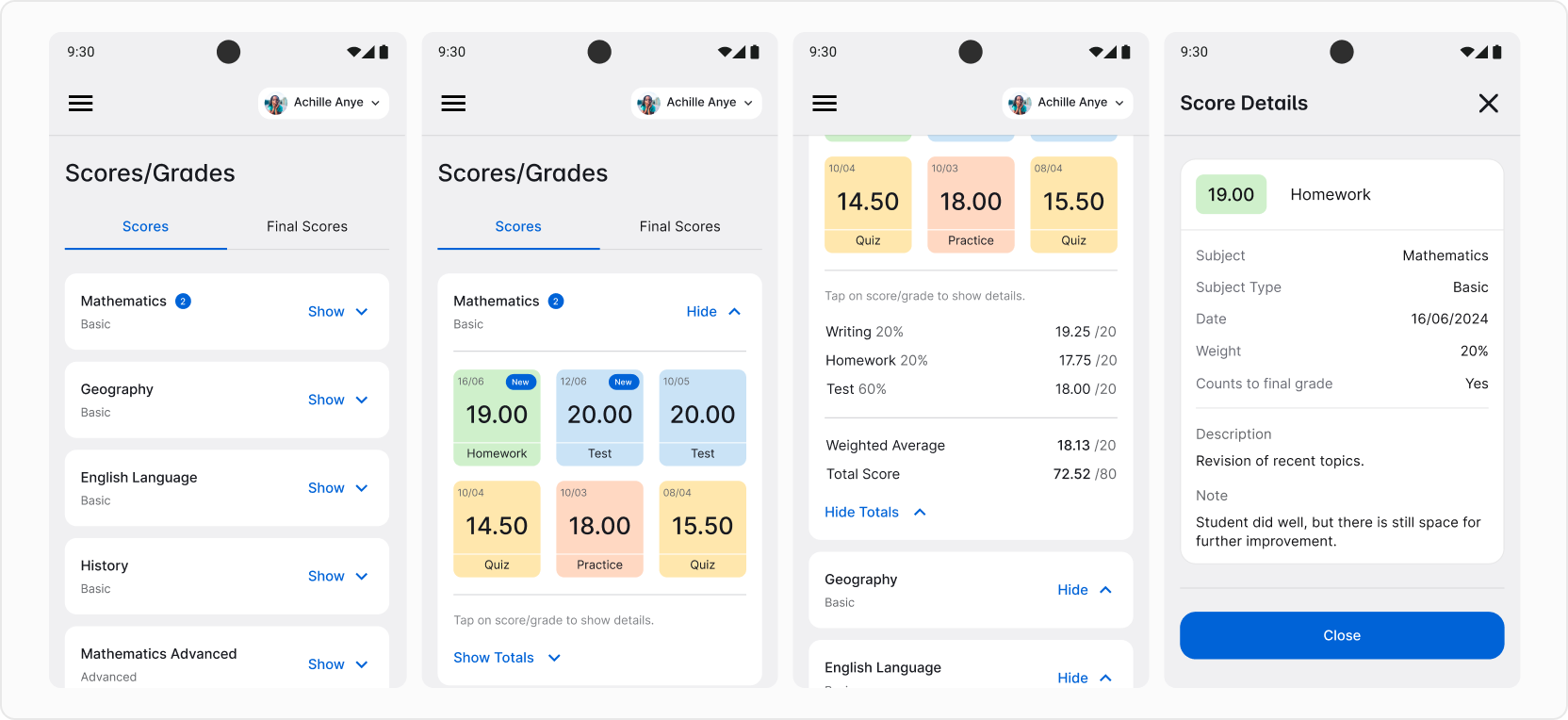
To see your child’s scores/grades, use the left-side menu and go to Scores/Grades. There, you’ll see a list of your child’s subjects. To reveal scores/grades, tap the Show button. Colorful cards provide some information, but if you’re looking for more details, tap on one of the cards. It will display a complete set of information about the selected score/grade – including teacher’s notes (if they were added).
❓ Don’t see any scores/grades yet? It’s possible that teachers at your school have not added them yet. Check this section of the app later for updates.
For each subjects, you have access to calculated summaries of your child’s progress. Find the Show Totals button right below the colorful scores/grades cards and tap on it. You’ll see average scores of each subject item and a total score.
Viewing Final Scores
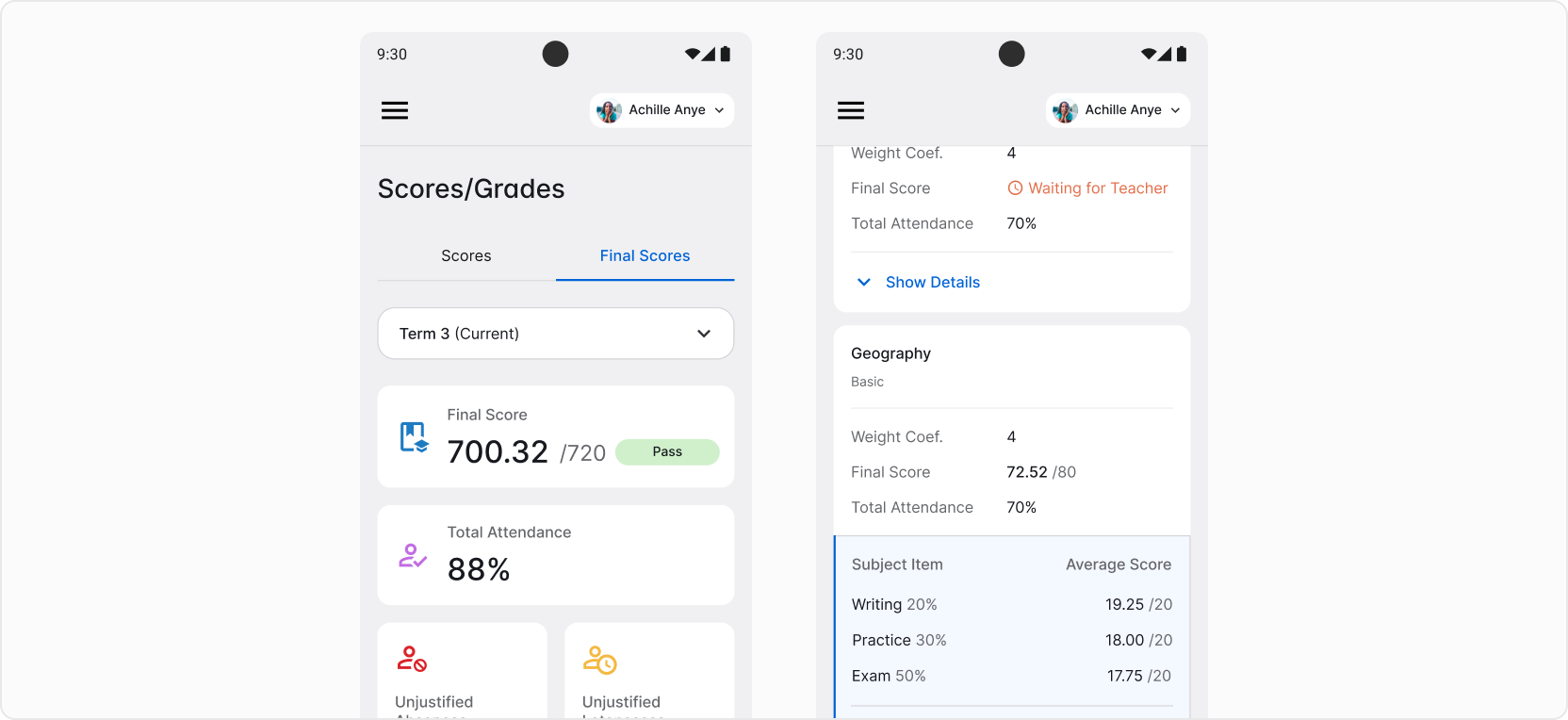
When in the scores/grades section of the app, tap the Final Scores tab to switch the view from scores/grades to final results.
💡 Final results are only available at the end of each term and school year, so don’t worry if you don’t see them yet – it’s probably because it’s too early.
You can switch between terms and year overview anytime by tapping the button on top. In this tab you’ll find a total summary of your child’s performance in the selected period of time. Summaries presented here will be shown on your child’s report card.
For more details, scroll down, where you’ll see final results for each of your child’s subjects. To access even more detailed calculations and results, tap the Show Details button.
💡 Some final scores might not be added by a subject’s teacher yet, so you’ll need to check later.