How do I track attendance and justify absences?
Parent App
Parent
Quickly check your child’s attendance records and submit absence justifications when needed. This guide walks you through where to find attendance info and how to notify the school about any missed days.
In this article
Click on a link below to jump to each section
In this article
Click on a link below to jump to each section
Viewing Attendance Records
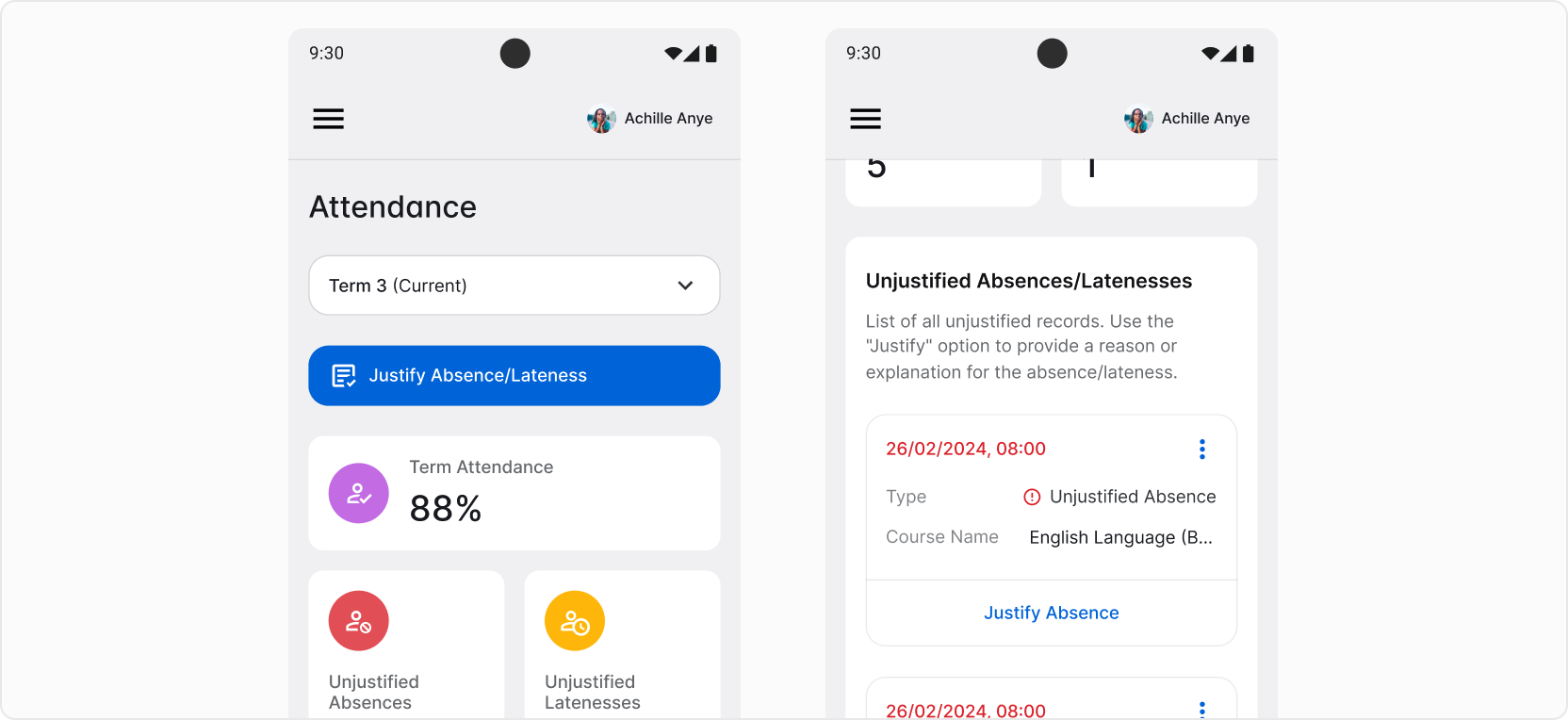
To access your child’s attendance records, go to Attendance section. You’ll find it in the left-side menu. At the top, you’ll see a button that allows you to switch between the period of time that you’re viewing. You can see attendance records for each of the school terms or a year overview.
Below, there’s a Justify Absence/Lateness button. In this guide, find more about justifying absences and latenesses below.
❓ Don’t see any attendance records yet? It’s possible that teachers at your school have not marked any attendance yet. Check this section of the app later for updates.
At the top, you’ll see a summary of your child’s attendance – including term attendance, and counts of any unjustified absences or latenesses.
For a detailed view, scroll down to see a list of each instance, including the specific class and date it occured.
Below the list of unjustified records, you’ll find a list of absences and latenesses that were justified.
Justifying Absences and Latenesses
There are two ways to justify an absence/lateness. First is to tap the large Justify Absence/Lateness button at the top of the page. Second is to find the absence/lateness that you want to justify in the Unjustified Absences/Latenesses list below and tap the Justify button.
If you opened the Justify Absence/Lateness form using the main button at the top, start by choosing whether you'd like to justify a single lesson or all lessons within a specific time period. Then, based on your selection, pick either the exact date and lesson, or a date range for the justification.
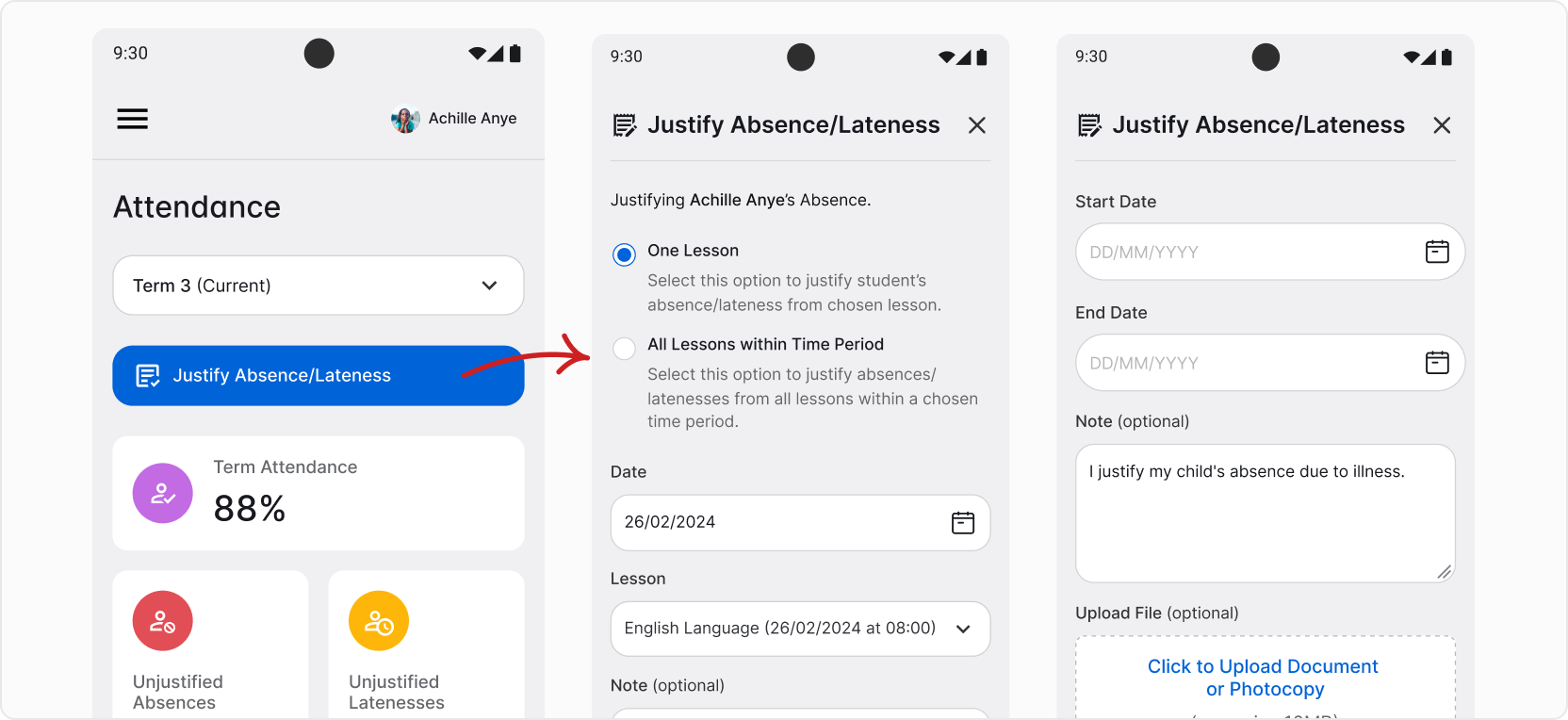
💡 If, for example, your child was absent for two weeks, select All Lessons within Time Period option. It allows you to justify all absences within the two weeks, so you don’t have to do it one-by-one.
If you selected a specific record to justify, simply tap Add Justification to confirm. You can also leave a note for the teacher and, if needed, upload a photo or scan of a justification document.
💡 Teachers will see the justifications you added.
All done! After confirming, you’ll find the justified absences/latenesses on the list.